
Overview
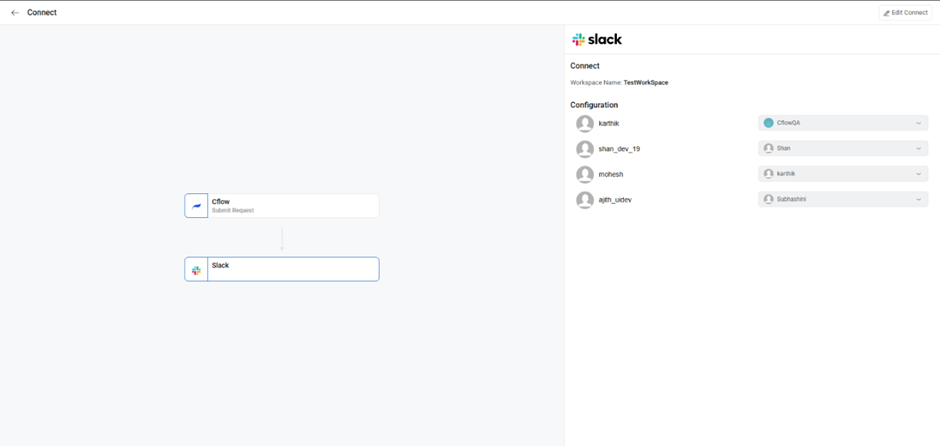
Cflow’s Slack Integration allows users to receive workflow approvals and notifications directly in Slack.
It helps approvers take quick action without switching between tools, improving decision turnaround time.
Steps to Set Up Slack Integration
- Go to Connect → New Connect → Slack
- In Initialization, select:
- Event: Submit Request
- Workflow Name: Choose workflow
- Description: Add notes
→ Click Save
- In Configuration, select:
- Stage Name and Rule Name
→ Click Continue
- Stage Name and Rule Name
- Click Connect to start Slack authentication.
- Approve Cflow’s access in Slack.
- Once done, you’ll see your workspace name and email.
- Map Slack Users with Cflow Users
- Match users 1:1 using the displayed lists.
- Click Save.
- Test by submitting a request in your workflow.
How It Works
- When a request is submitted in Cflow, an approval message is sent as a private bot message to the mapped Slack user(s).
- Approvers can respond directly in Slack using Approve or Reject buttons.
- The first approval action is processed; any later actions display a warning that the request has already been approved.
Reauthentication
- If your Slack connection expires or is revoked:
- You’ll receive an email and in-app notification.
- Click Reauthenticate directly from the notification or reopen the setup in Connect and click Connect again.
- The connection becomes active for all workflows using that account.
Revoking Access
- To stop Slack messages, open the integration setup and click Revoke Connection.
- Once revoked, messages will no longer be delivered to Slack users until reauthenticated.
❓ FAQ – Slack Integration
Q1. Can I use one Slack connection across multiple workflows?
Yes. A single Slack connection can be reused for multiple workflows and workflow events. You do not need to reconnect for each workflow.
Q2. What happens if my Slack token expires or the account access is revoked?
If your Slack access token expires or is revoked, Cflow automatically disables the connection. You will receive an email notification and an in-app alert with a Reauthenticate option. You can either click Reauthenticate from the notification or open the setup in Connect and reauthenticate manually. Once reauthenticated, the connection becomes active again across all workflows using that account.
Q3. What happens when a Slack connection is revoked manually?
If a connection is manually revoked, Slack messages will stop being sent. To resume communication, you must reauthenticate the connection.
Q4. Can multiple users approve the same request in Slack?
Yes. Multiple users can receive the same approval request. However, only the first user who approves will have the approval processed. Other users will receive a warning message stating the request has already been approved.
Q5. How do I know if my Slack connection has been revoked or expired?
You will see a notification in the Connect page, and an email will be sent to the account owner. Clicking the notification allows you to view details and reauthenticate.
Q6. Do Slack approvals respect Cflow’s permissions?
Yes. Slack approvals follow Cflow’s access control rules. Only authorized users can approve requests.
Q7. What types of messages are sent to Slack?
Cflow sends private bot messages containing the request details and approval buttons. After taking action, Slack displays a confirmation, error, or warning message depending on the workflow status.
Q8. Can reauthenticating one revoked connection restore it across multiple workflows?
Yes. Reauthenticating a single Slack connection restores access for all workflows that are using that account.