
This guide helps you configure and use the SharePoint integration in Cflow to automatically upload workflow files to a selected SharePoint folder.
1. Introduction
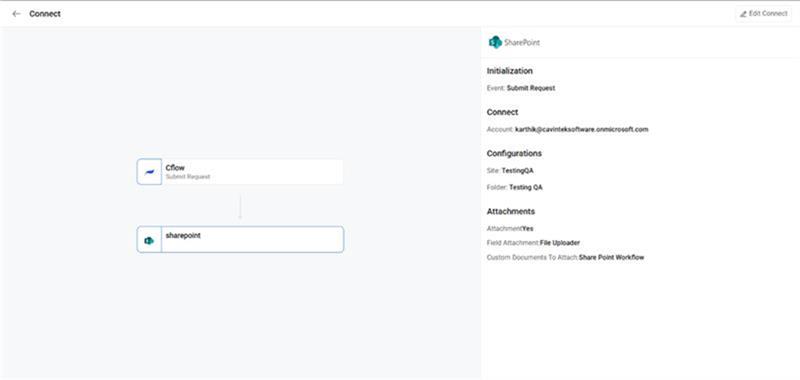
Cflow allows you to connect your SharePoint account and upload workflow attachments directly into a SharePoint site and folder of your choice. Once configured, files are compressed into a single ZIP file and uploaded automatically based on workflow rules.
2. Prerequisites
Before starting:
- Your organization must provide access to a SharePoint site.
- You must have permission to upload files to the selected SharePoint folder.
- Your Cflow admin must have enabled SharePoint integration in the Connect module.
3. Step-by-Step Usage
Step 1: Go to Connect → SharePoint
- Login to Cflow.
- Navigate to Connect.
- Choose SharePoint from the available connection types.
Step 2: Create or Select an Account
A. Creating a New Account
- Click Add Account.
- You will be redirected to Microsoft’s login screen.
- Sign in with your SharePoint/Microsoft 365 account.
- Approve the requested permissions.
- Once completed, the account will appear in the Account List.
B. Selecting an Existing Account
- If your SharePoint account is already connected earlier, simply select it.
- Cflow allows the same account to be shared across multiple workflows or events.
Step 3: Review Account Details
When you expand an account, you will see:
- SharePoint connection email
- Token status (Active / Revoked)
- Last authenticated time
If the connection was revoked or expired, you will see a notification and a Reauthenticate button.
4. Configuring SharePoint Mapping
After selecting an account, click Next → Configuration.
Step 4.1: Select Site
- In the Site Name dropdown, choose your SharePoint site.
- The list loads directly from SharePoint.
Step 4.2: Select Drive
- After selecting the site, choose the Drive (usually “Documents”).
Step 4.3: Select Folder
- Choose the folder where Cflow should upload ZIP files.
- You may browse subfolders.
Click Save.
5. Attachment Mapping
After configuration, click Next → Attachment Mapping.
You can choose which file types to upload:
- Attachments (added manually in workflow)
- Field Attachments (file upload fields)
- Custom PDF (generated PDFs inside Cflow)
Each option has a toggle.
Enable the ones you need, then click Save.
6. How Upload Works During Workflow Execution
Once the setup is complete:
- When a request reaches the stage where SharePoint upload is configured:
- Cflow collects files based on your selected attachment types.
- All files are compressed into a single ZIP file.
- The ZIP file is uploaded to the SharePoint folder configured earlier.
Limitations
- Maximum ZIP size: 300 MB
- If the size exceeds 300 MB:
- Upload is stopped
- You will receive an email
- No files are uploaded to SharePoint
7. Token Expiry & Reauthentication
If refresh token expires
- The connection is automatically marked as revoked.
- You will receive an email notification.
- You must click Reauthenticate inside Connect → SharePoint.
If the same account is used in multiple workflows
- Reauthenticating once is enough.
- All linked configurations become active again.
8. Notifications You May See
| Notification Type | Meaning | Action Required |
| Connection Revoked | Token invalid or expired | Click Reauthenticate |
| Upload Failed (Size Limit) | Files exceeded 300 MB | Reduce file size |
| Invalid SharePoint Folder | Folder removed or permission changed | Select a new folder |
| Account Removed | Account deleted from Connect | Add a new account |
9. Troubleshooting
I cannot see my SharePoint sites
- Ensure you have permission to access the site.
- Ensure your account was authenticated correctly.
Upload did not happen
- Check if:
- Workflow rule triggered upload
- Token is active
- File size < 300 MB
Reauthenticate button not visible
- Refresh the Connect page
- Check if the admin removed the account
10. FAQs
1. Can I use the same account for multiple workflows?
Yes. One SharePoint account can be mapped to unlimited workflows.
2. Do I need to reauthenticate each workflow separately?
No. Reauthenticating once updates all workflows using that account.
3. What happens if SharePoint folder is deleted?
Uploads stop. You will be notified to reconfigure the folder.
4. Are files uploaded individually?
No. All files are compressed into a single ZIP.
5. Can I upload more than 300 MB?
No. The limit is fixed for performance and security reasons.