
Pending Requests by Stages
Overview
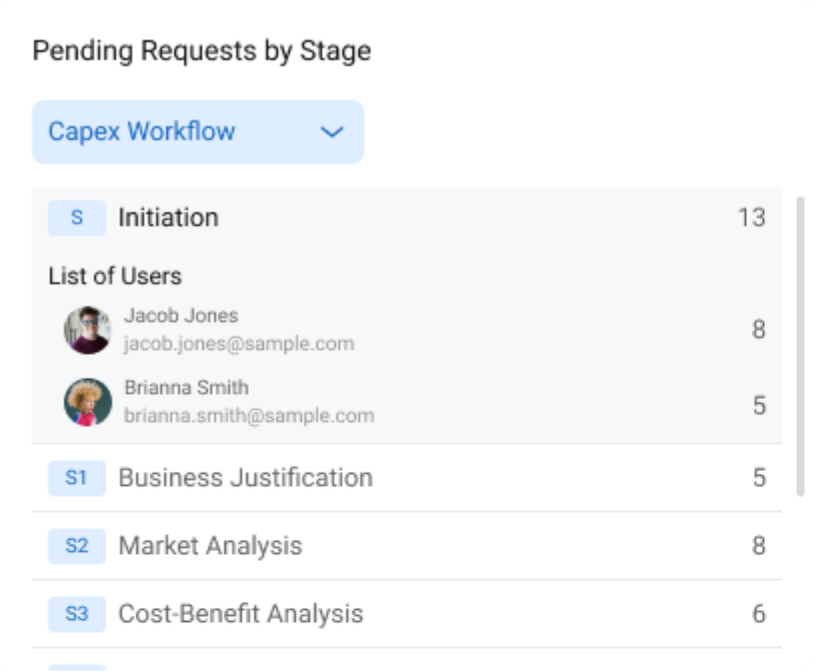
The Pending Requests by Stages widget provides a clear, stage-wise view of pending requests across one or more workflows. It helps administrators and workflow owners quickly identify bottlenecks at specific stages and understand where action is required.
This widget is the reverse view of Pending Requests by User:
- Primary grouping: Workflow Stages
- Drill-down: Users with pending requests in each stage
Key Capabilities
- View pending request counts grouped by workflow stages
- Expand a stage to see user-wise pending requests
- Filter data by one or multiple workflows
- Role-based access control for secure visibility
Who Can Use This Widget
Admin
Admins have complete visibility.
- View all workflows and all stages
- See total pending counts across workflows
- Expand any stage to view all users
- View user profile photos, names, and emails
Workflow Administrator
Workflow Administrators have limited visibility.
- View only workflows they administer
- View stages within accessible workflows
- Expand stages to see users associated with those stages
- Pending counts include only accessible workflows
Note: Workflow Administrators cannot see data from workflows they do not manage.
Regular Users (Non-Admin)
Regular users have self-only visibility.
- Can see the widget on the dashboard
- View only stages where they have pending requests
- Expand a stage to see only their own pending requests
Regular users cannot view other users’ data or perform searches.
How to Add the Widget
- Go to the Dashboard and click on Edit Dashboard.
- Then, click Add Widget to open the widget popup.
- Select Pending Request by Stage from the list.
- Configure the widget by choosing one or more workflows from the dropdown and click Add Widget.
- Once the widget is added, click Update Dashboard to apply the changes.
- You can now view the pending requests grouped by workflow stages.
Widget Display
Stage List View (Default)
Each row represents a workflow stage and shows the total number of pending requests.
Expanding a Stage
- Click on a stage row to expand it
- The expanded view displays users with pending requests in that stage
For each user, the following details are shown (based on permissions):
- Profile photo
- Name
- Email address
- Number of pending requests
Access Control Applied:
- Admin / Workflow Admin: See all users
- Regular User: See only their own entry
Workflow Selection & Filtering
- Changing the selected workflow refreshes:
- Stage list
- Pending counts
- Expanded user details
Default Behavior
- If multiple workflows are configured, the first one is selected by default
Common Questions
1. Can regular users use this widget?
Yes. They can view stages where they have pending requests and see only their own data.
2. Why can’t I see other users under a stage?
You do not have Admin or Workflow Administrator permissions.
3. Can I switch workflows?
Yes. You can switch between workflows configured in the widget. Visibility rules still apply.
Summary
The Pending Requests by Stages widget helps teams:
- Identify approval bottlenecks quickly
- Understand workload distribution by stage
- Maintain data security with role-based visibility
It is an effective dashboard tool for improving workflow efficiency and accountability.