
1. What is OCR in Cflow?
OCR (Optical Character Recognition) allows Cflow to read text from images and PDF files and automatically fill workflow fields.
You can use OCR to:
- Extract data from uploaded files
- Validate user-submitted data
- Create multiple workflow records from a ZIP of files
- Scan invoices with table line items
OCR helps reduce manual entry and improves data accuracy.
2. How to Set Up OCR?
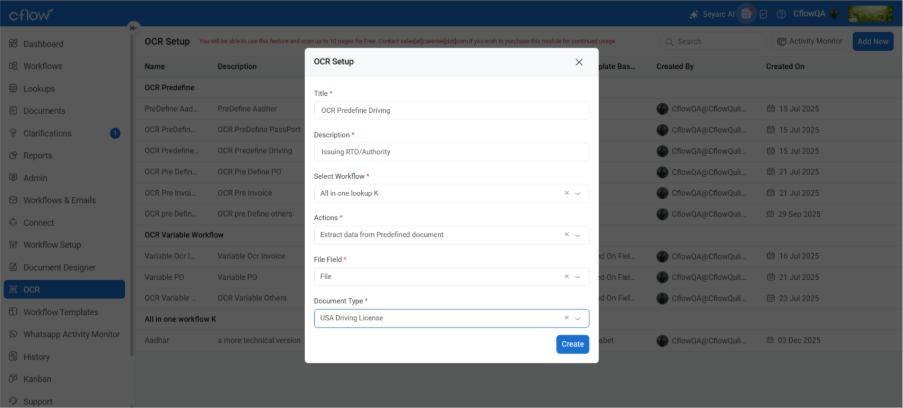
Follow these steps to create and configure an OCR setup:
Step 1: Create OCR Setup
- Enter OCR Name and Description
- Select the Workflow you want to connect
- Choose a Template
– Predefined templates
– Or “Others” → upload a custom image/PDF - Select an Action:
– Extract data from file
– Verify data on submit (Error / Warning)
– Initiate a record from OCR files - Choose the Workflow File Field (the file field that triggers OCR)
- Enable Invoice Mode if scanning invoices
- Save to create the OCR Document
Step 2: Configure the OCR Document
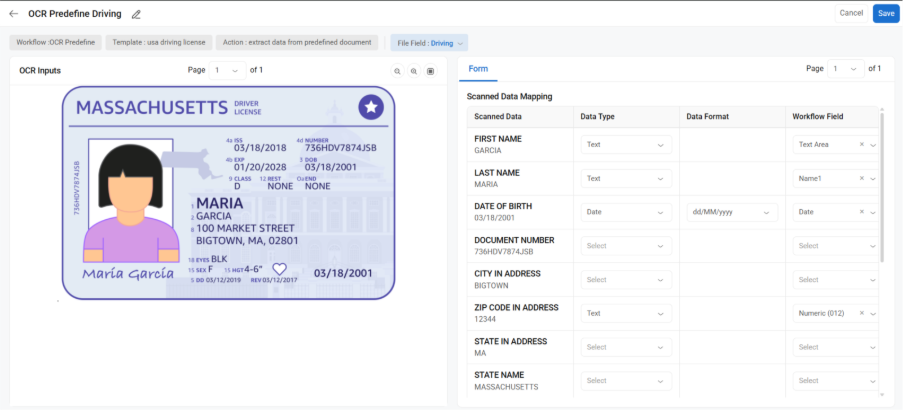
After saving, you can:
- Edit OCR Title
- View (but not edit): Workflow, Template, Action, Validation
- Edit File Field
You will see the OCR workspace with:
- File preview
- Extracted text
- Workflow fields for mapping
Step 3: Upload Files & Map Data
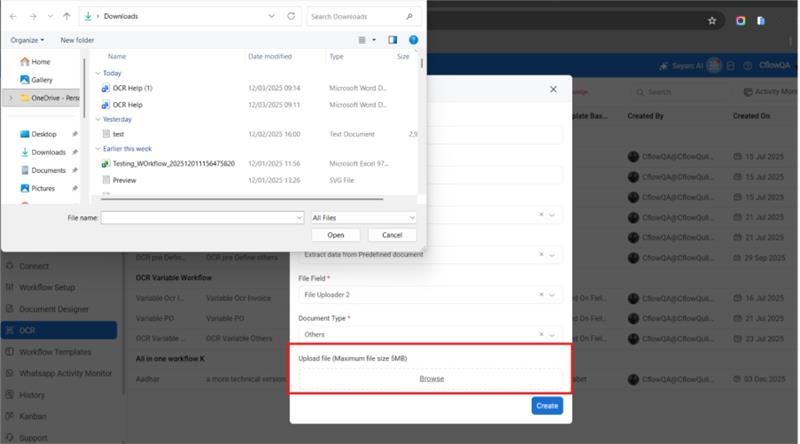
Depending on your template:
Predefined Template
- Review extracted text
- Click extracted labels to highlight the exact location on the file
- Map each label to a workflow field
Custom Upload
- Upload your own image or PDF
- Use Zoom, Page Navigation, and Click Highlighting
- Map extracted values to workflow fields
Invoice Mode
- Upload invoice files
- System extracts:
– Header information
– Table/line item data - Map each extracted field to the workflow
Click Save to finish mapping.
3. Using OCR in Workflows
After setup:
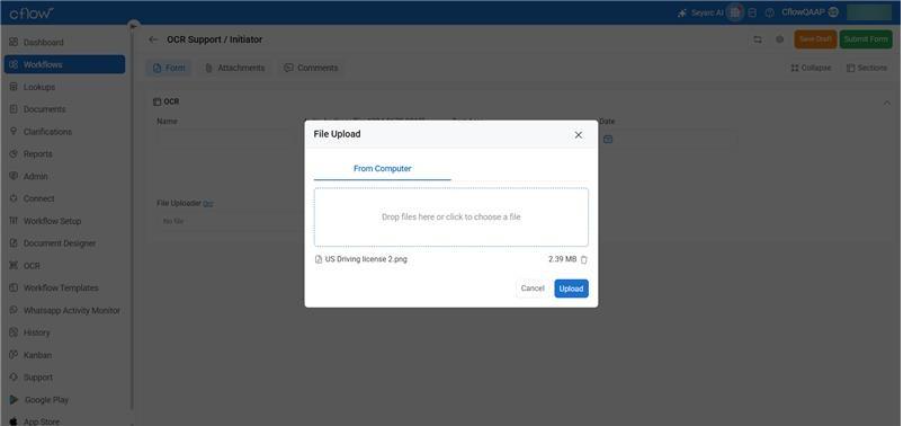
Extract Data During Form Fill
When a user uploads a file in the mapped file field:
- OCR automatically extracts data
- Workflow fields get filled instantly
4. Tips for Best Results
- Use clear and high-quality images
- Prefer PDFs over photos
- Avoid shadows, blur, glare
- Make sure invoices have clean table lines
- For multipage PDFs, verify correct page before mapping
- Keep field names clear and consistent
5. Troubleshooting
No text extracted
→ Try a clearer image or PDF
Values mapped incorrectly
→ Re-click on the extracted label to highlight and re-map
Submit blocked
→ “Error” mode is active; switch to “Warning” or correct the mismatch
Invoice table incomplete
→ Upload a clearer invoice or increase zoom
OCR not triggering
→ Check if correct Workflow File Field is selected in OCR setup
Cflow OCR –FAQ
1. What is OCR inCflow?
OCR reads text from images and PDF files and helps you extract and map data into workflow fields.
2. What can OCR do?
- Extract text from uploaded files
- Scan invoices including line items
3. How do I set up OCR?
- Create a new OCR setup
- Select workflow, template, and action
- Choose the file field that triggers OCR
- (Optional) Turn on Invoice Mode
- Save
4. How do I map OCR data?
- Upload or preview the file
- Check the extracted text
- Click the extracted values to highlight where they appear
- Map each extracted label to a workflow field
- Save the mapping
5. How does OCR work during form submission?
When a user uploads a file, OCR extracts the raw text, and the system uses the mapping you configured to fill the workflow fields.
Users do not map fields — admins map fields once during setup.