
Cflow Connect – Custom AI Agent allows organizations to integrate AI-powered automation directly into workflow forms.
Using AI Agents, administrators can:
- Extract information from uploaded documents
- Validate submitted data
- Auto-fill workflow form fields
- Perform compliance analysis
- Reduce manual data entry
- Improve workflow accuracy
Currently supported trigger:
✅ On Form Load
When users open a workflow form, the configured AI Agent can automatically analyze uploaded files or available form data and populate configured fields.
What Can AI Agents Do?
AI Agents can automatically:
- Read invoices
- Extract receipt details
- Validate compliance
- Summarize contracts
- Analyze uploaded documents
- Detect mismatches
- Populate workflow fields
Example Business Use Cases
| Department | Use Case |
| Finance | Invoice validation |
| HR | Resume screening |
| Legal | Contract clause extraction |
| Procurement | Vendor verification |
| Operations | SLA compliance checks |
| Expense Management | Fraud detection |
| Sales | Quote validation |
Creating an AI Agent
Navigation
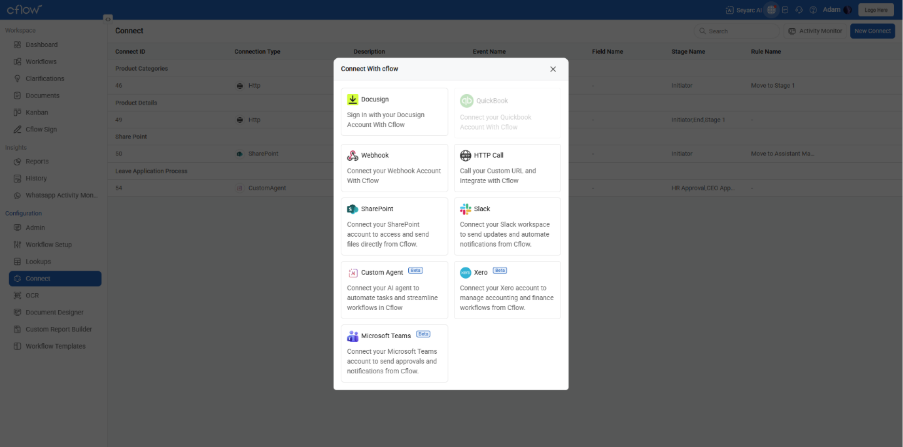
Go to:
Cflow → Connect → AI Agents
Click:
Create Agent
Step 1 – Basic Information
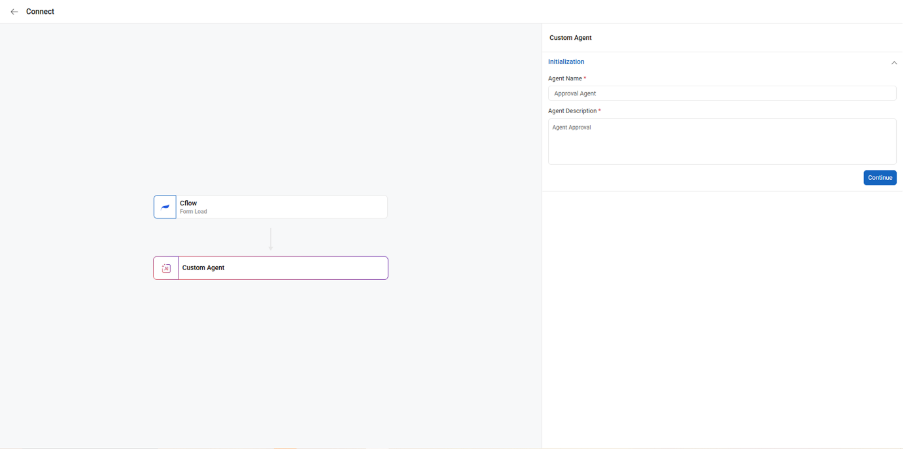
Fill the following details:
| Field | Description |
| Agent Name | Name of the AI Agent |
| Description | Purpose of the AI Agent |
Example
| Field | Value |
| Agent Name | Invoice Compliance Validator |
| Description | Extracts invoice data and validates compliance |
Step 2 – Configure Prompt
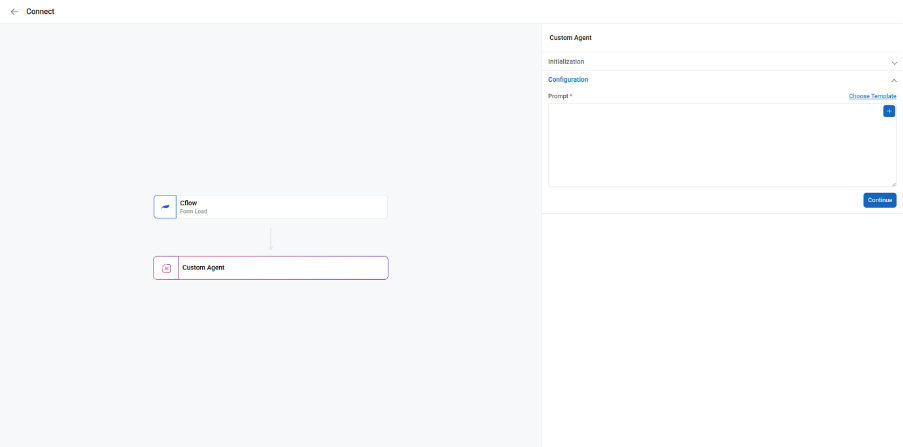
The prompt defines what the AI should do.
You have two options:
Option A – Custom Prompt
Manually write your own AI instructions.
Option B – Use Template
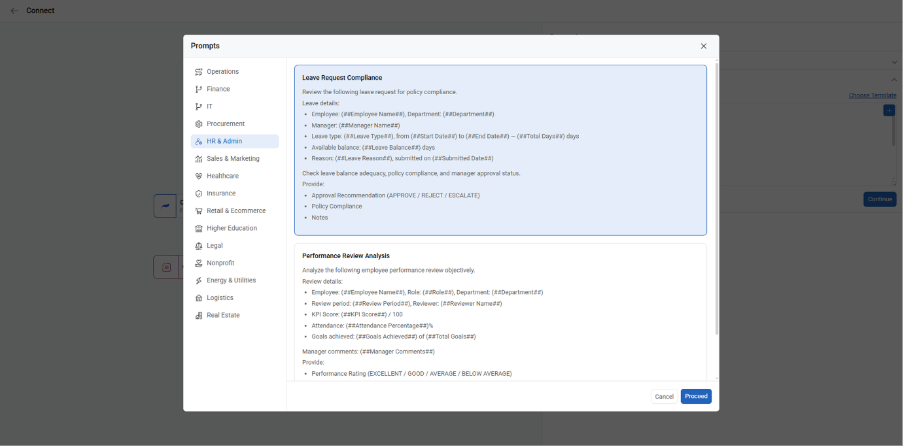
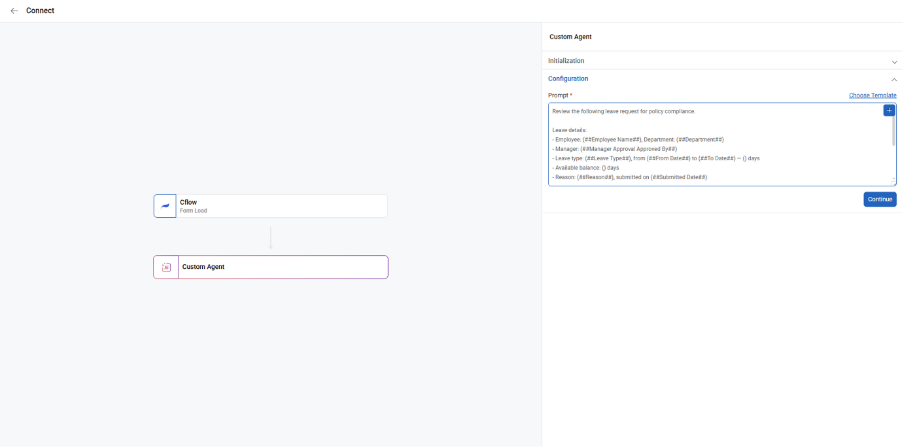
Choose predefined templates from:
- Finance
- HR
- Legal
- Procurement
- Sales
- Operations
Templates can be modified after selection.
Step 3 – Configure Output Fields
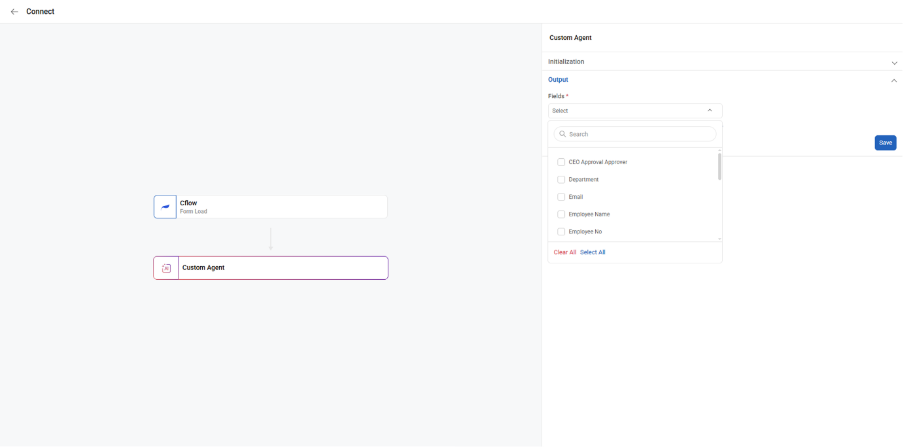
This step defines which workflow fields the AI should populate.
Example
| Display Name |
| Date of issue |
| Receipt number |
| Receipt amount |
| Summary of invoice |
| Compliance Status |
The selected fields will be automatically updated using the AI response.
Example AI Prompt
Invoice Validation Prompt
You are an invoice compliance validation assistant.
Analyze the uploaded invoice document and extract:
– Invoice date
– Receipt number
– Total amount
– Invoice summary
Validate:
– Amount mismatch
– Date validity
– Compliance requirements
Step 4 – Save the Agent
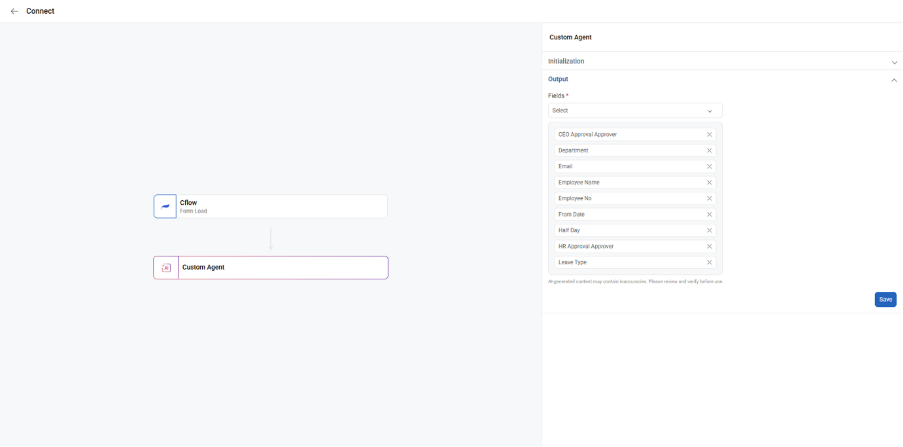
Click:
✅ Save Agent
The AI Agent is now available for workflow configuration.
Using AI Agent in Workflow Forms
Navigation
Go to: Workflow Settings → AI Agent Configuration
Configure AI Agent for Workflow
Select:
| Field | Example |
| Workflow | Expense Claim |
| Trigger Event | On Form Load |
| AI Agent | Invoice Compliance Validator |
Save configuration.
How AI Works in Forms
When a user opens the workflow form:
- AI Agent automatically starts processing
- Uploaded documents can be analyzed
- Configured fields may be auto-filled
- Validation results may be shown directly in the form
This helps users complete forms faster with reduced manual effort.
AI Agent Window in Forms
When AI updates fields, users can see:
- Agent name
- Updated fields
- Previous value
- New value
- Timestamp
Purpose:
- Transparency
- User awareness
- Better visibility of AI-generated updates
Validation Rules
The system validates AI responses before updating fields.
| Field Type | Validation |
| Number | Numeric values only |
| Date | Valid date format |
| Dropdown | Must match existing option |
| JSON | Must be valid JSON |
Error Handling
Invalid Response
If the AI response is invalid:
- Field update will be skipped
- Error details may be logged
- Existing values remain unchanged
Missing Fields
If some fields are missing:
- Available fields will still be updated
- Missing fields remain unchanged
Best Practices
Write Clear Prompts
Good prompts produce better results.
Recommended
- Mention exact extraction requirements
- Request JSON-only response
- Keep instructions simple and specific
Use Proper Field Mapping
Always map the correct workflow fields.
Keep Output Structured
Use structured output requirements for reliable field population.
Example Prompts by Department
Finance – Expense Validation
Analyze the uploaded expense receipt.
Extract:
– Receipt number
– Expense date
– Total amount
– Vendor name
Validate:
– Duplicate claims
– Amount mismatch
– Tax compliance
Return only valid JSON.
HR – Resume Screening
Analyze the uploaded resume.
Extract:
– Candidate name
– Total experience
– Skills
– Education
Evaluate suitability for Software Engineer role.
Return only valid JSON.
Legal – Contract Analysis
Analyze the uploaded contract.
Extract:
– Contract start date
– Contract end date
– Renewal clause
– Risk summary
Procurement – Vendor Verification
Analyze vendor onboarding documents.
Validate:
– GST information
– Company registration
– Address consistency
– Missing compliance documents
Security & Audit
Cflow maintains audit records for:
- AI Agent used
- Updated fields
- Previous and new values
- Timestamp
- User activity
Benefits
Using Custom AI Agents helps organizations:
✅ Reduce manual effort
✅ Improve data accuracy
✅ Accelerate form completion
✅ Enhance compliance
✅ Improve workflow intelligence
Summary
Cflow Connect – Custom AI Agent enables intelligent automation directly inside workflow forms.
Key capabilities:
- AI-driven extraction
- Automatic field population
- Smart validation
- Workflow intelligence
- Transparent AI-assisted form experience
This helps organizations improve efficiency while maintaining controlled and reliable automation.