A budget provides organizations with a structured financial roadmap to manage resources effectively and achieve strategic goals, and tools like Cflow can streamline this process through automated workflows. It ensures accountability and helps prevent financial pitfalls like overspending. Without one, organizations risk misalignment and inefficiency.
Financial Planning
Budgets enable forecasting of revenues and expenses, allowing proactive adjustments to economic changes, with Cflow enhancing accuracy via real-time collaboration and approvals. They align departmental activities with overall objectives, promoting coordination across teams. This planning tool supports long-term growth by identifying funding needs early.
Resource Allocation
Effective budgets prioritize essential projects by allocating limited resources based on expected returns, and Cflow’s customizable modules optimize this by tracking approvals and spend limits. They highlight areas for cost savings without compromising operations. Organizations use budgets to justify expenditures, ensuring every rupee contributes to value creation.
Performance Tracking
Budgets serve as benchmarks to measure actual results against projections, revealing variances for timely corrections, while Cflow dashboards provide visual insights for faster analysis. Regular reviews foster accountability among managers for their spending. This evaluation drives continuous improvement and informed decision-making.
Risk Management
By anticipating cash flow shortages, budgets build reserves for unexpected events like market downturns, with Cflow’s automation reducing errors in forecasting. They encourage contingency planning, enhancing organizational resilience. Strong budgeting practices signal financial health to investors and stakeholders.
How to implement budget in Cflow?
Initially you have to setup a lookup with the specific fields and the amount you would like to set as a budget.
Step 1:
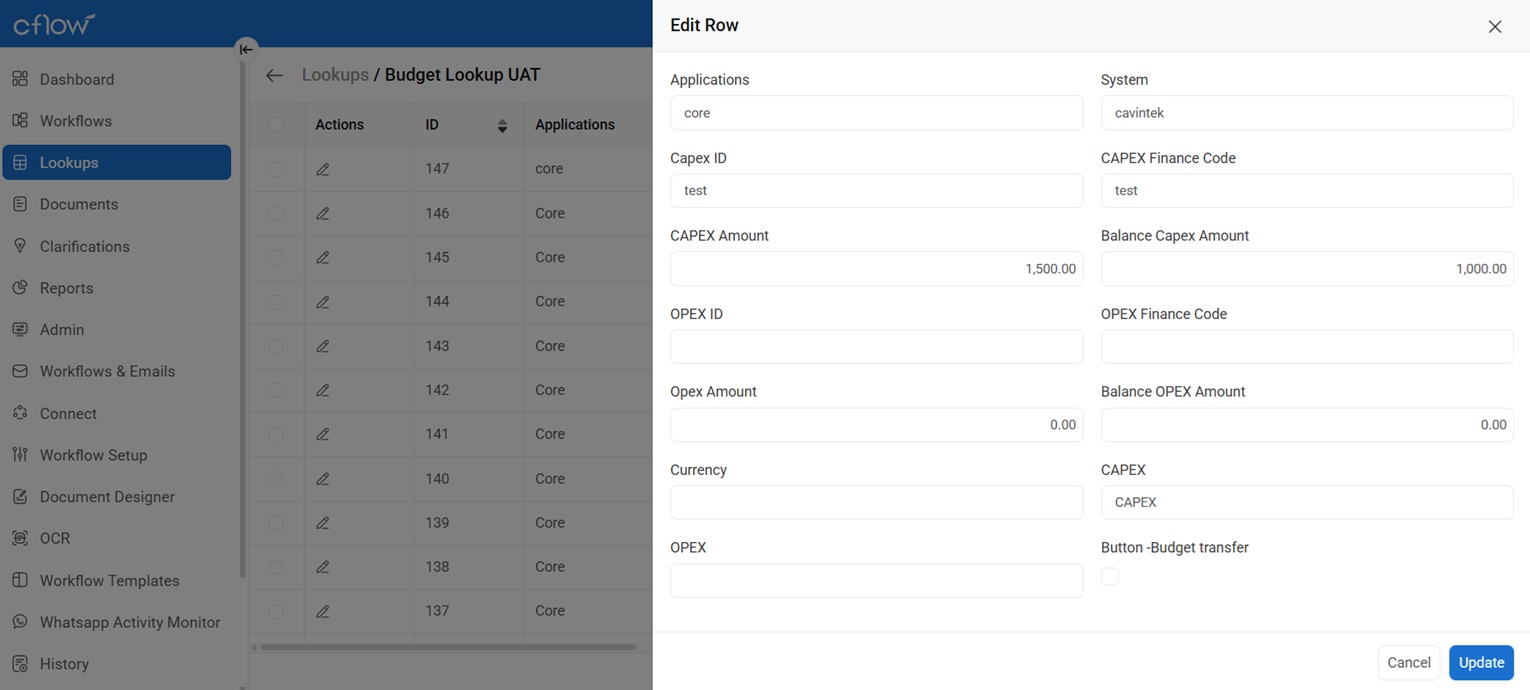
Create a list of fields which is specific to your organization. In the below screenshot we are able to see that we have listed Application and system, Initial allotted Capex amount , Balance capex amount (if a purchase order is raised for 100 INR and the initial allotted budget is 500 INR then the balance would be 400 INR)
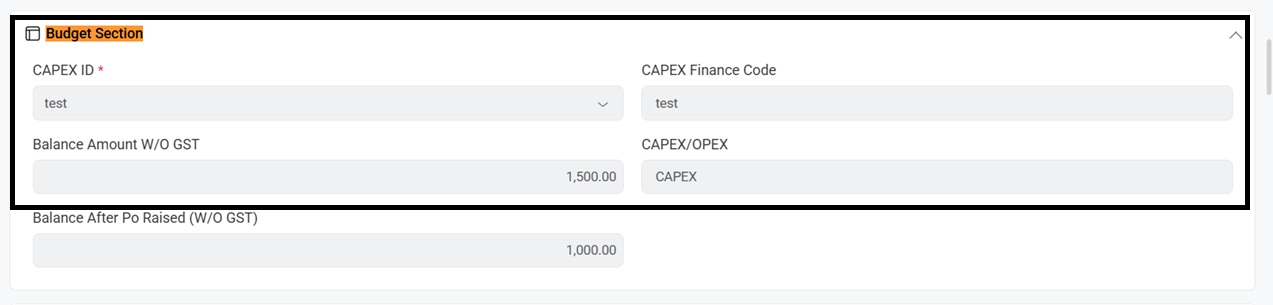
Step 2: To view the above lookup in the workflow for better user experience, we have to add the fields in the workflow (Budget section).
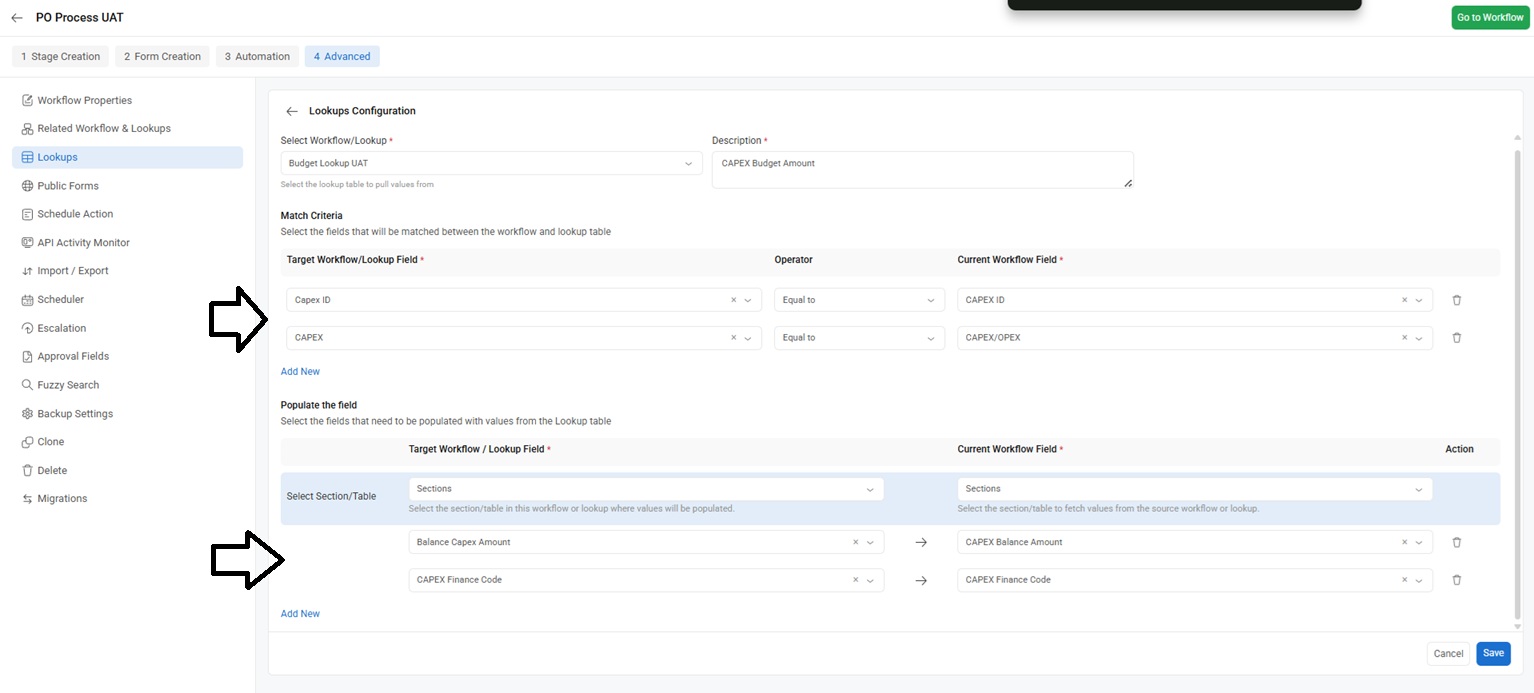
Step 3: Write a lookup condition to populate the values of the budget lookup as shown in the sample screenshot
Step 4: An API call is used to deduct the amount from the Budget (Initial allotted amount)
For example: A user has Initiated a record in Purchase order workflow for 2000 INR and the Budget was set as 10,000 INR , once the record is submitted the Cflow public API is called and the balance in the budget lookup will automatically update the remaining balance 8000 INR.
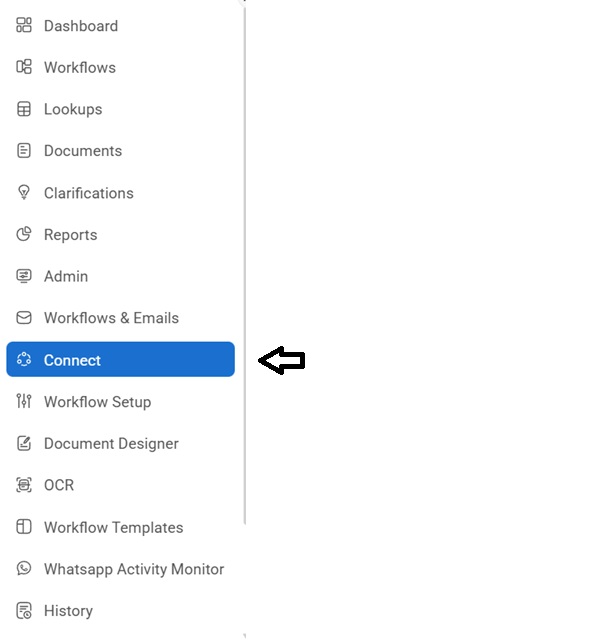
In order to trigger the API, Click on the connect page -> New connect

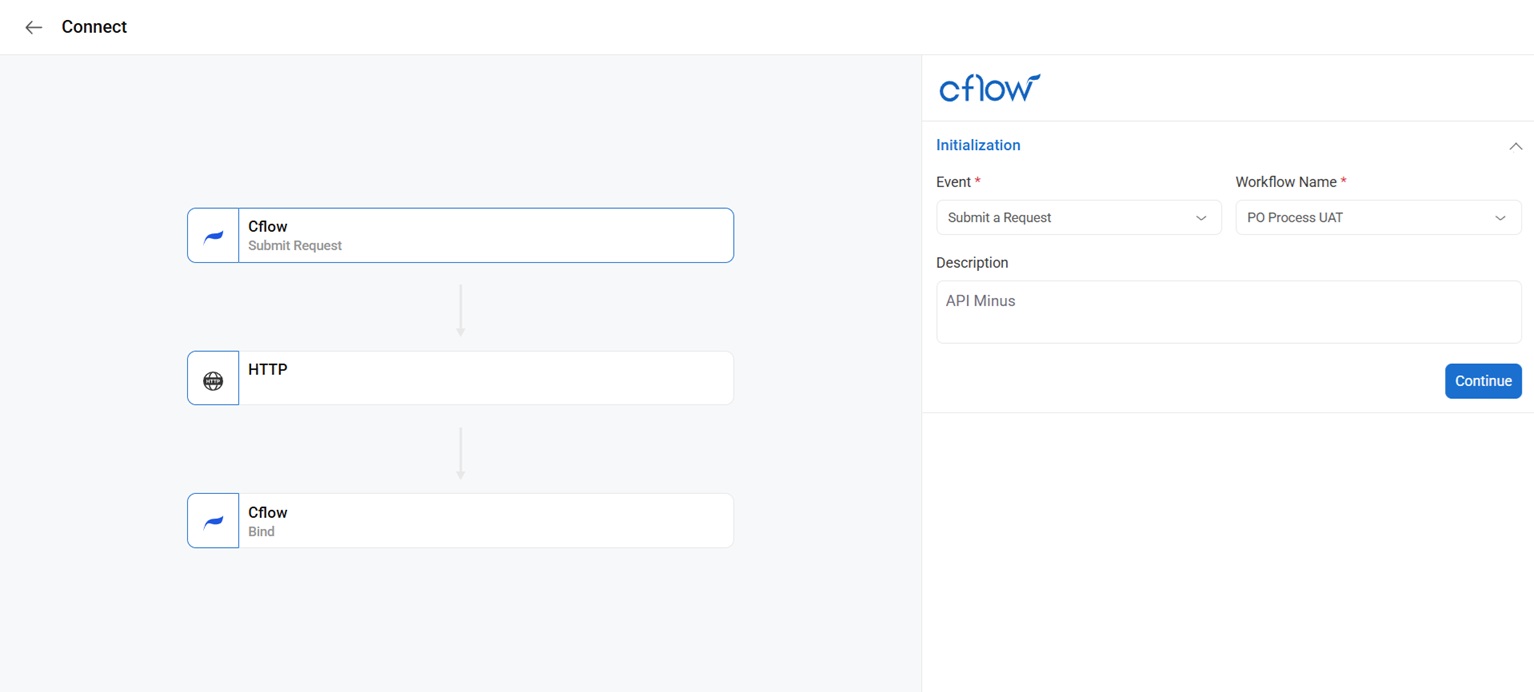
Step 5: Write event as “submit a request”
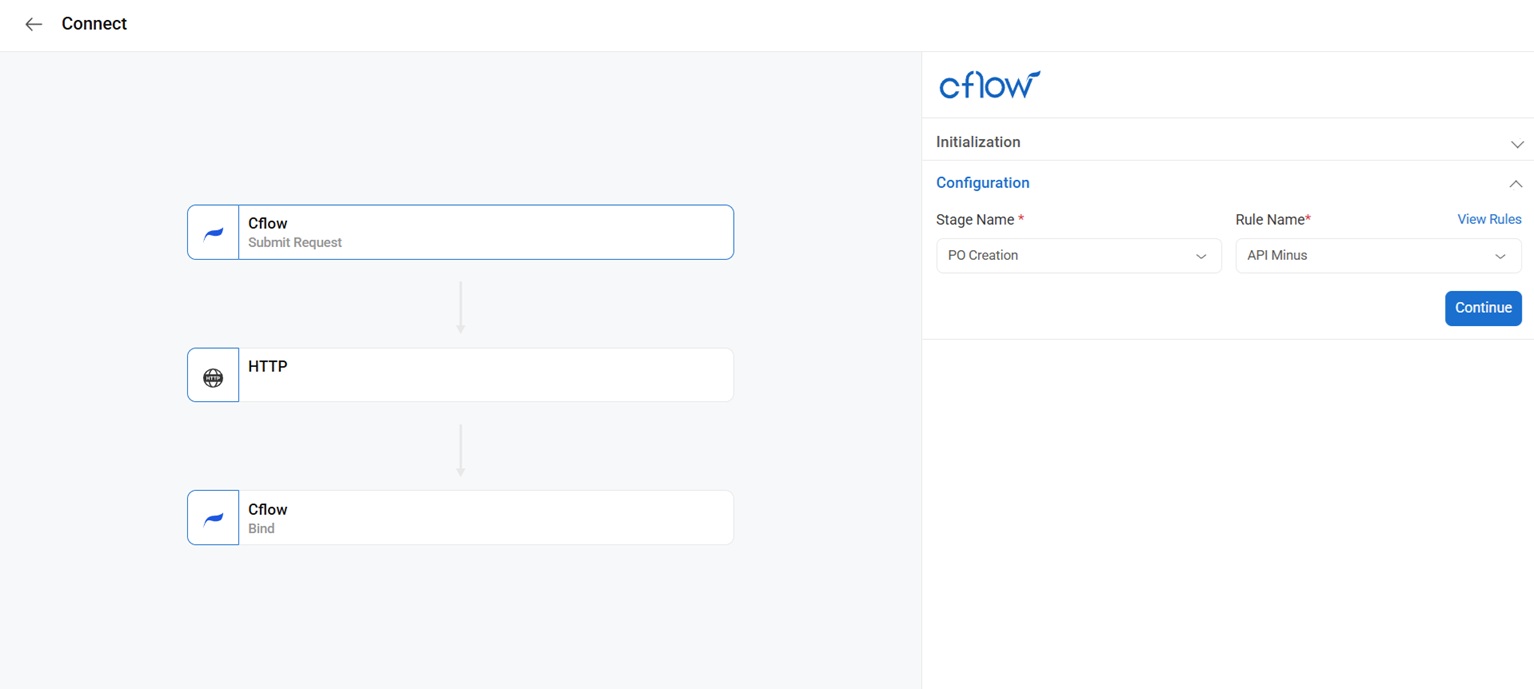
Step 6: Enter the stage name and the rule ( This will help the API to get triggered once the rule is satisfied in that particular stage)
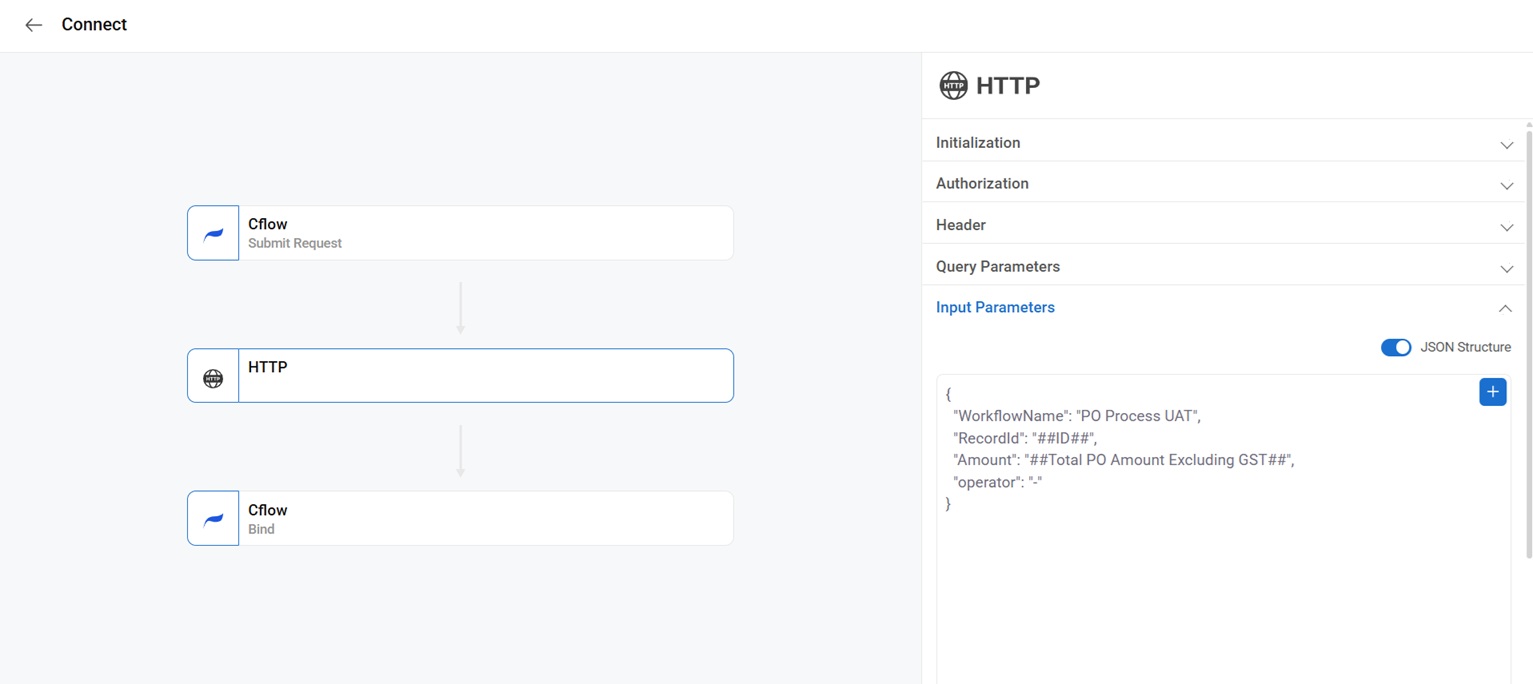
Step 7: Specify the Initialization, Authorization, Header (API and User key), Input parameters as shown in the below screenshot and save the setup.
Note:
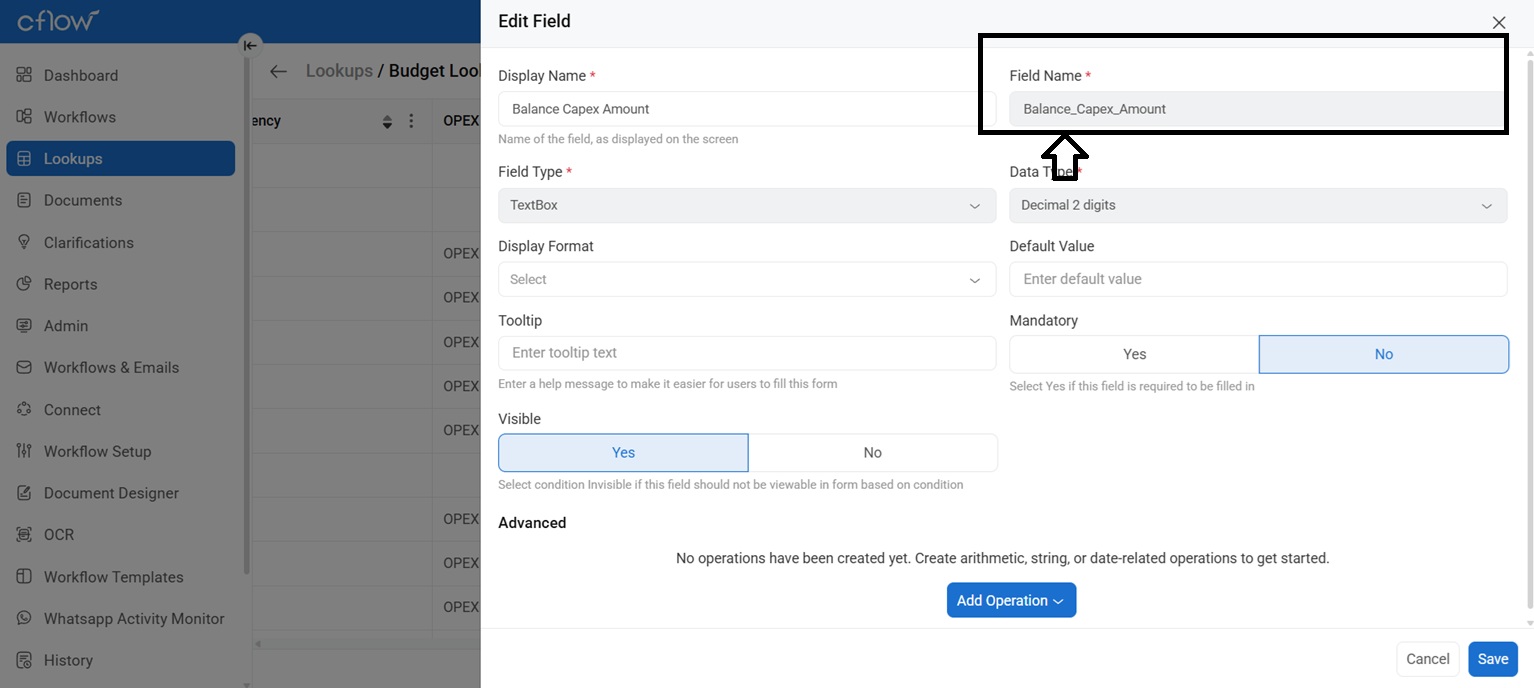
- The lookup description should be provided as a Budget Amount
- The field name should be mentioned as Balance in the lookup as shown in the below screenshot.