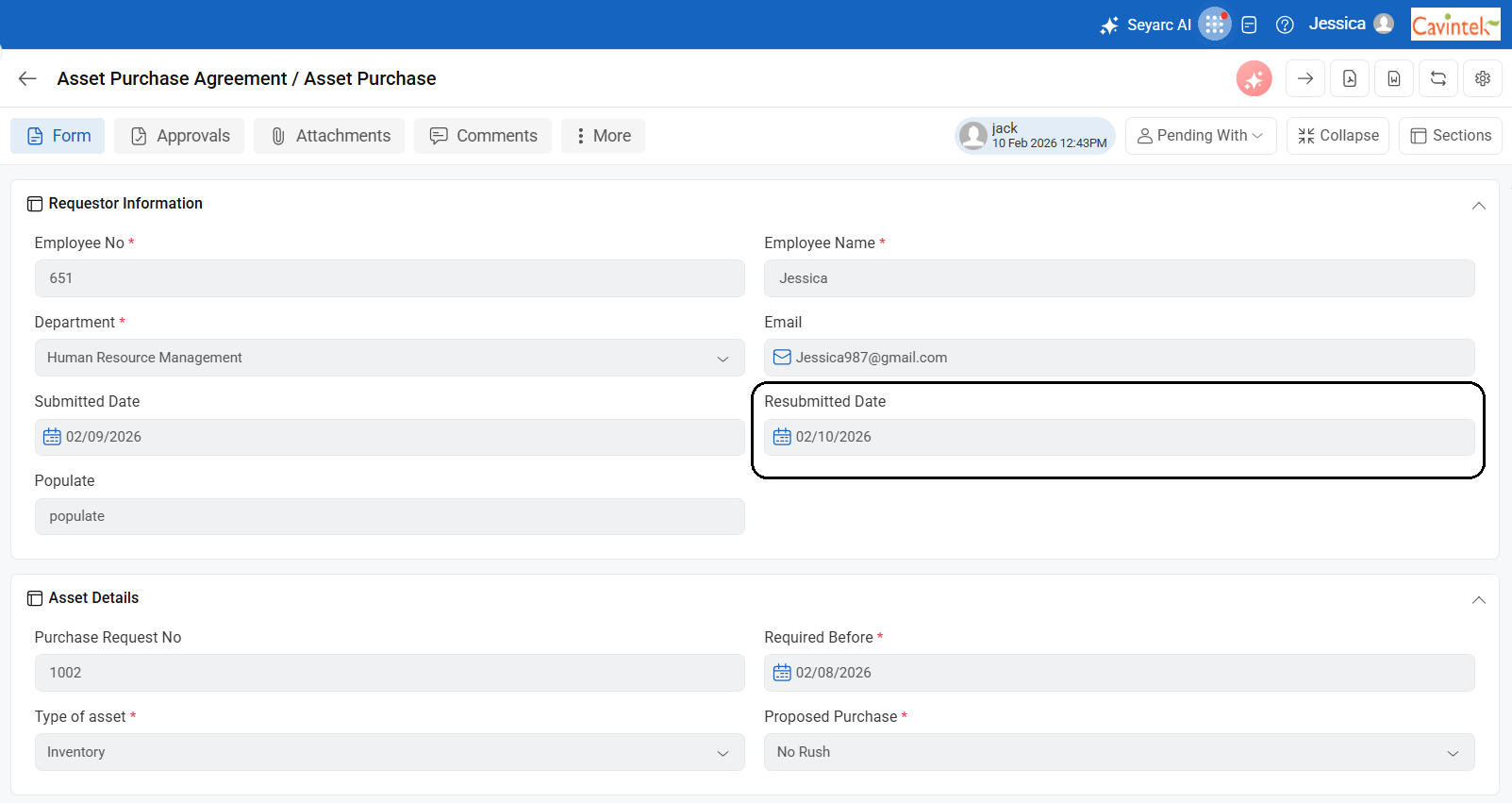
The Submitted Date is captured based on the date the request is submitted.
Steps to Capture the Submitted Date:-
1. Go to Menu > Workflow Setup and select the required workflow.
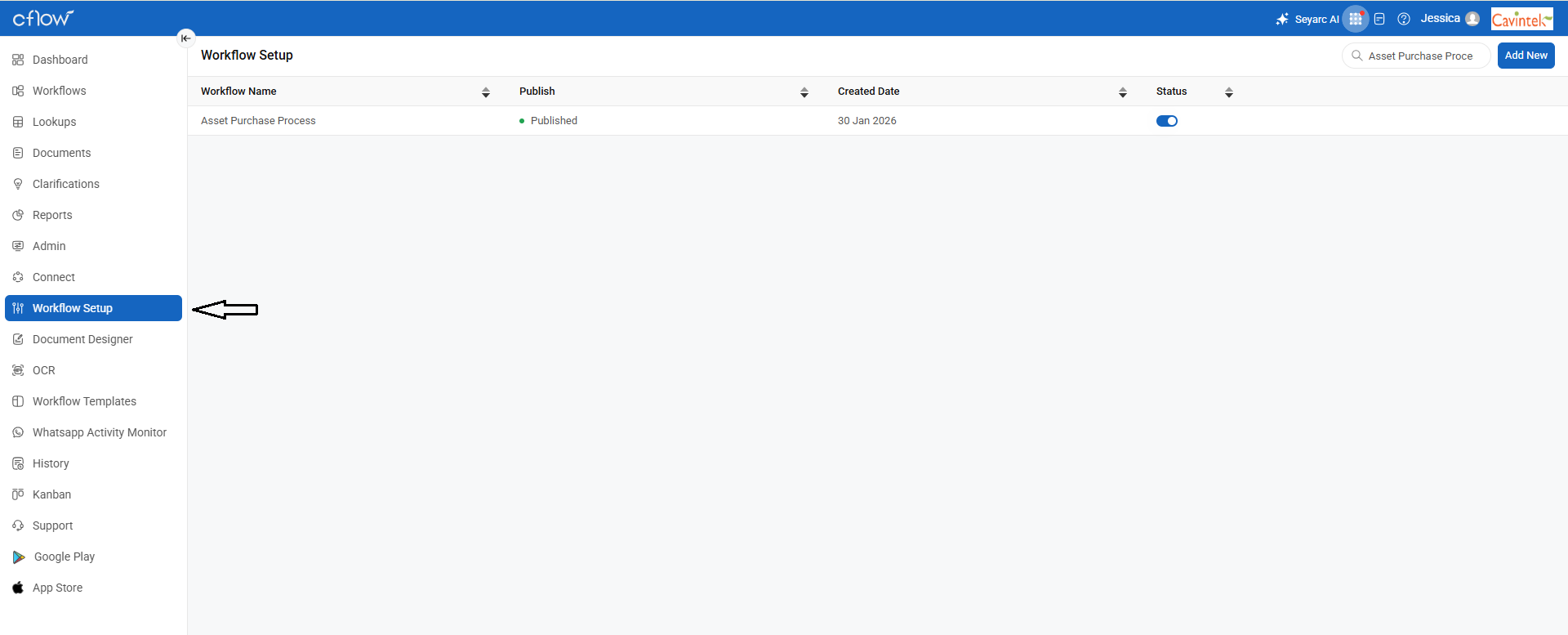
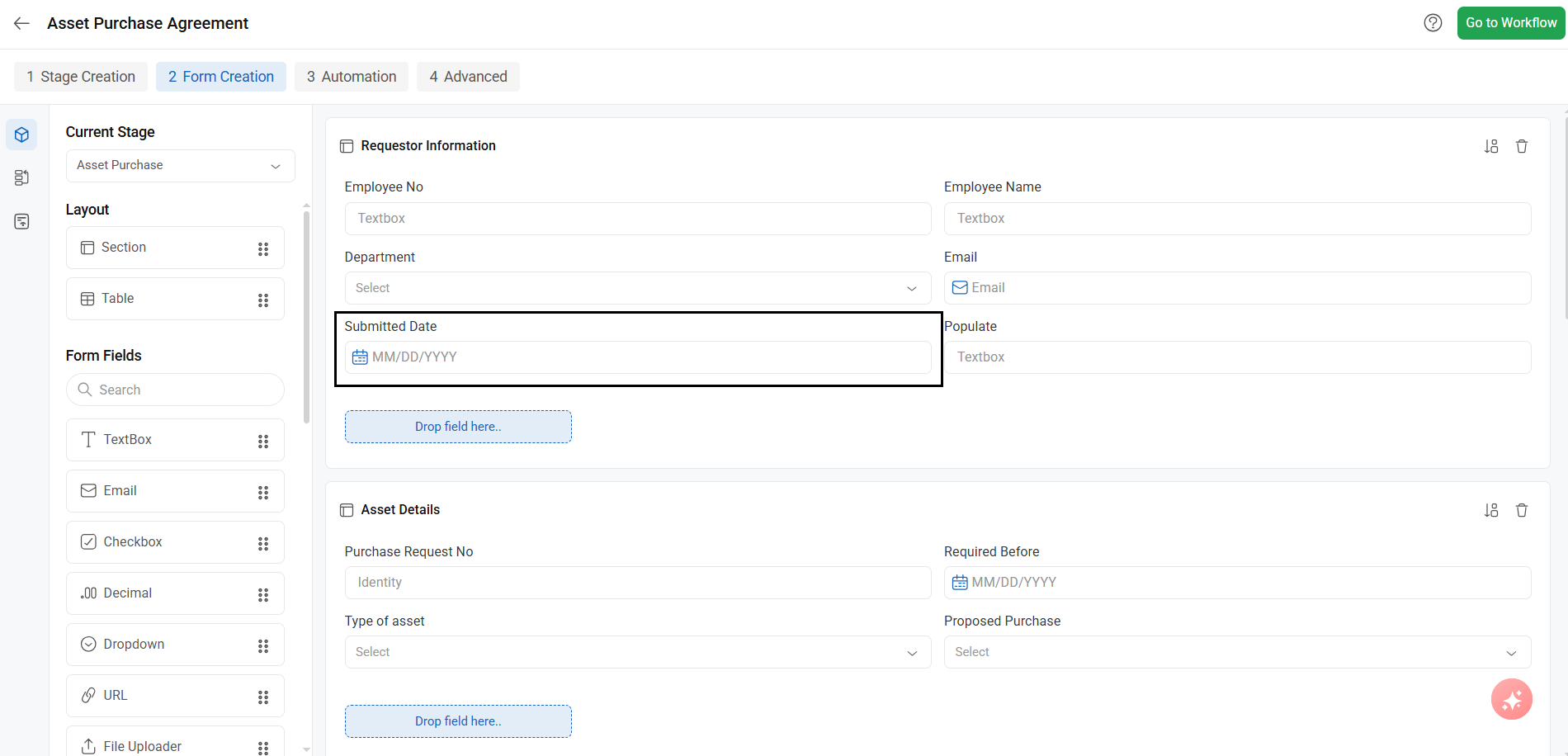
2. Create a Date field in the form with the name “Submitted Date.”
– This field name acts as a unique keyword and enables the system to automatically capture the submission date.
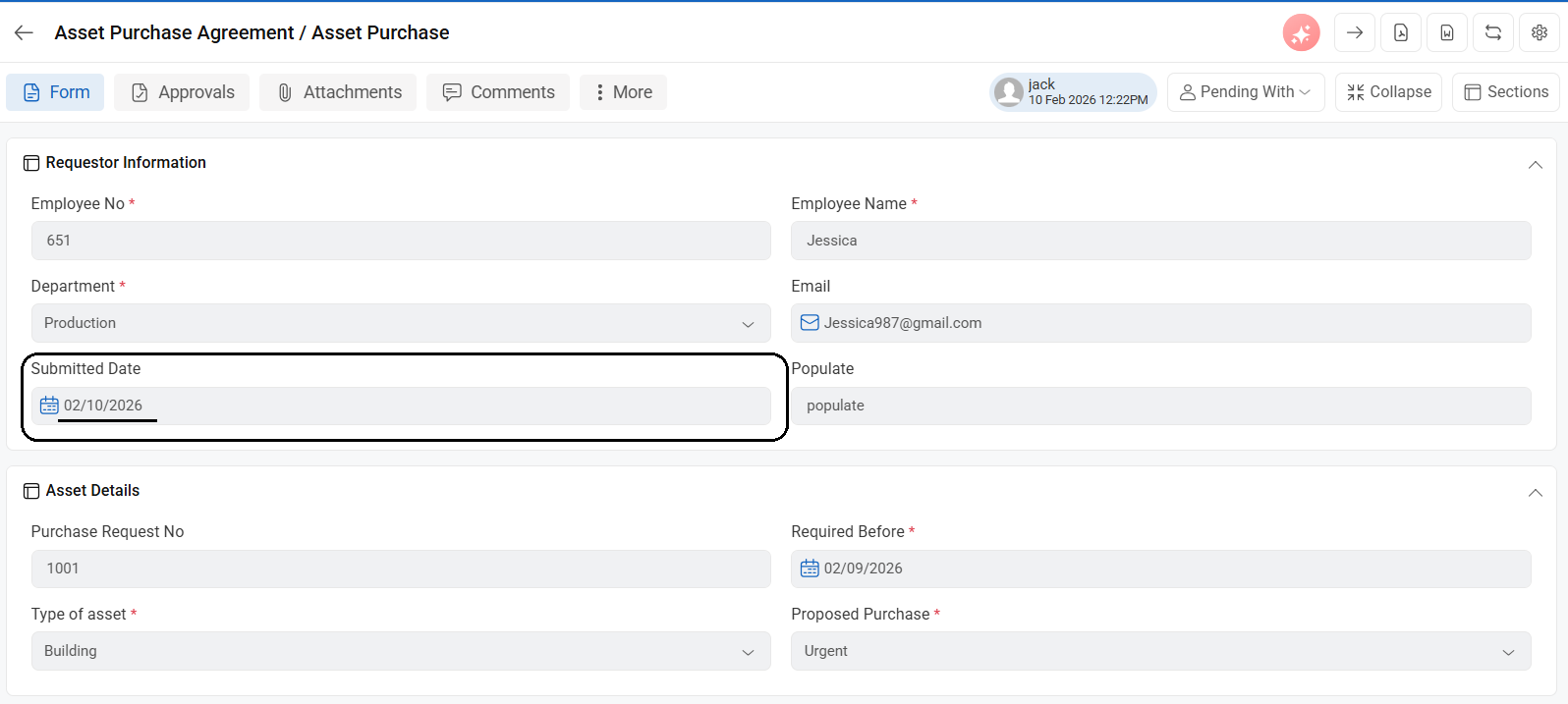
3. The date will be populated automatically when the request is submitted.
– If the request is saved as a draft, the date will not be captured until it is submitted.
How to Capture the Re-submission Date:-
If a request is sent back to the initiator and then resubmitted, you can capture the resubmission date using a dedicated field.
Steps to Capture the Re-submission Date:-
1. Create a Date Field in the Form with the name of “Resubmitted Date”.
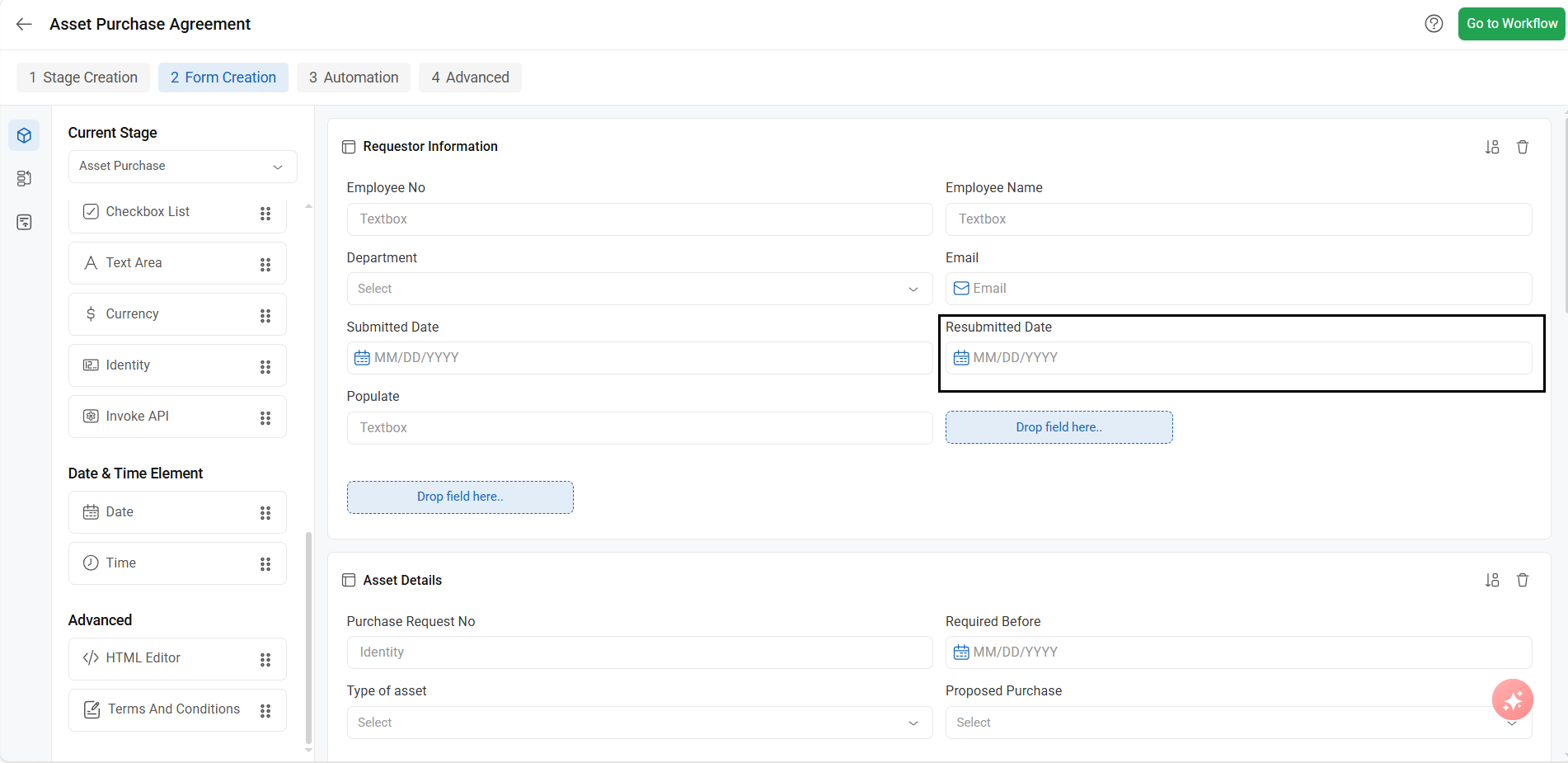
2. The date will be automatically updated each time the request is resubmitted after being sent back to the initiator.