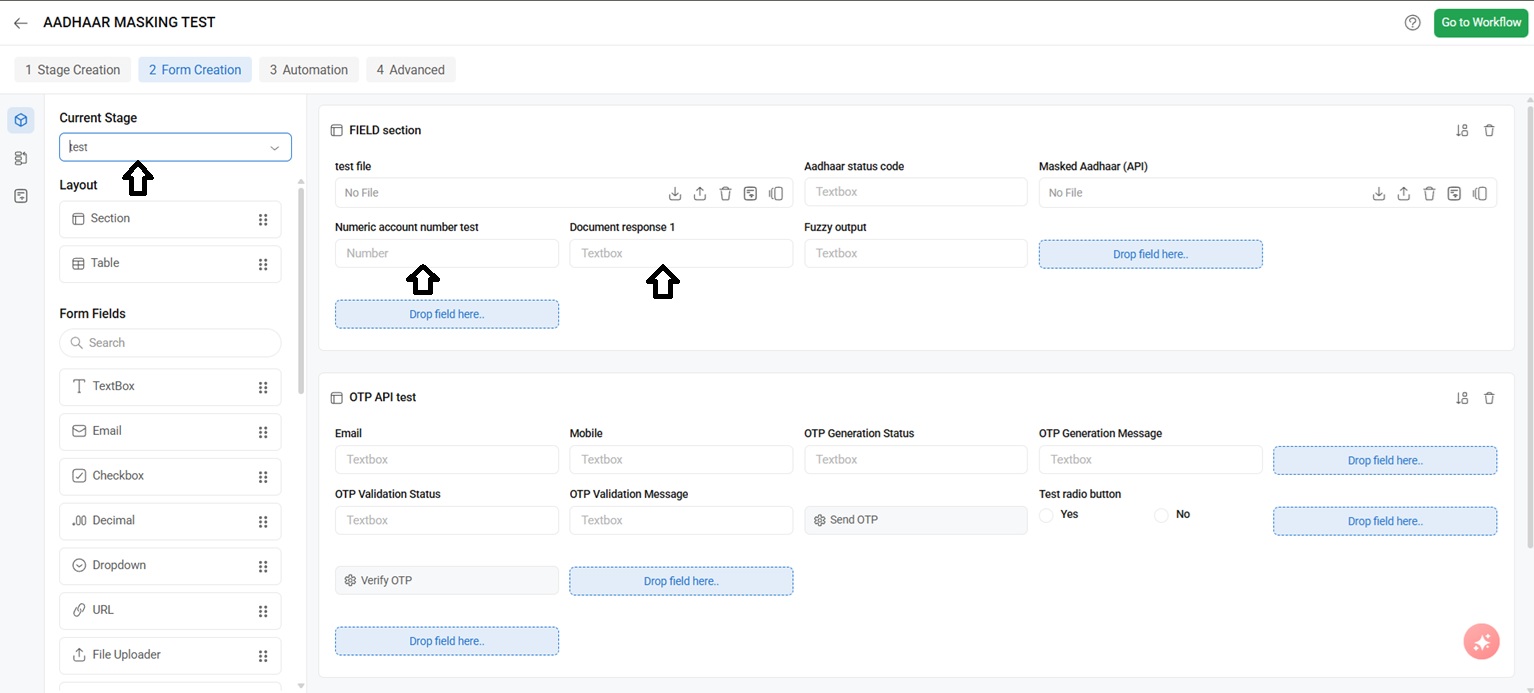
How to do Field sorting across the stages?
To sort a field, we can just drag and change its position.
For example:
Let us consider, I you would like to have the highlighted field in the second place as shown in the image 1. You can click and drag the field to the required position as shown in the image
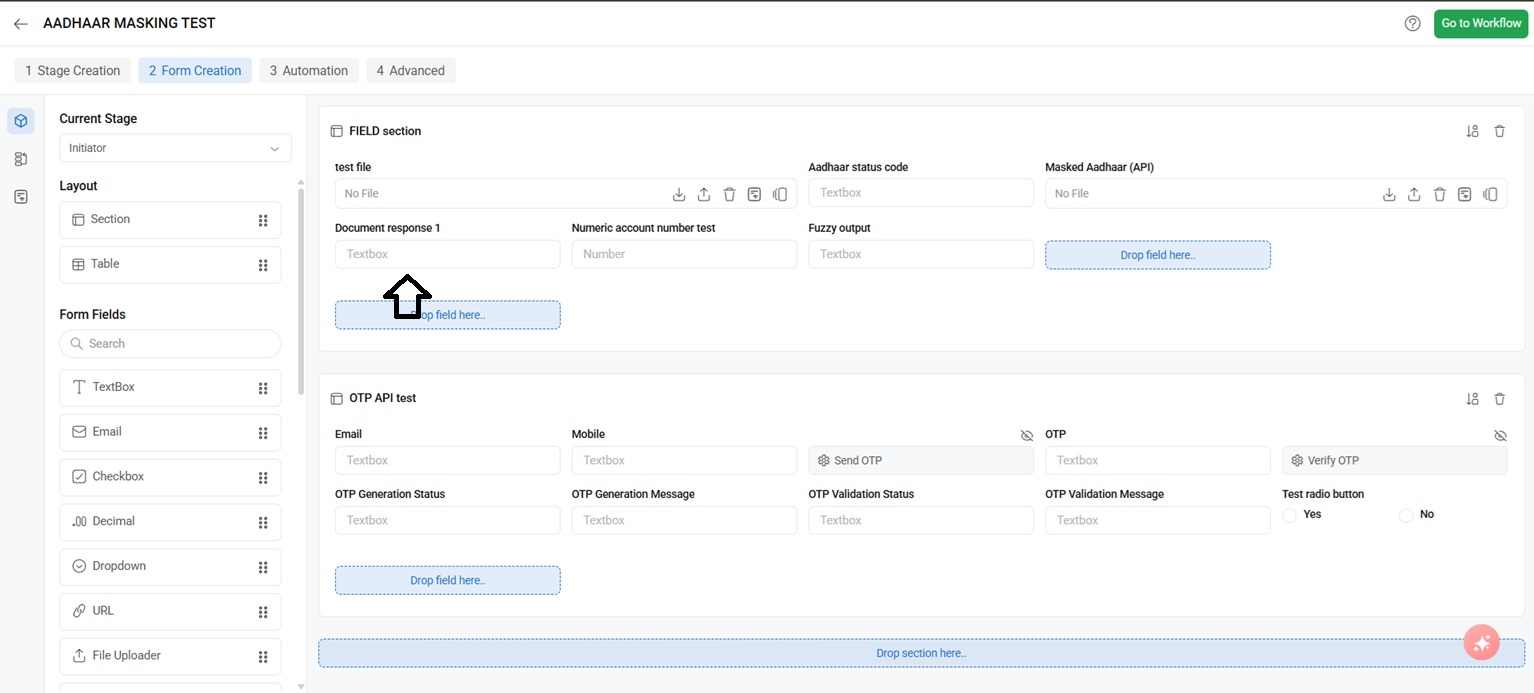
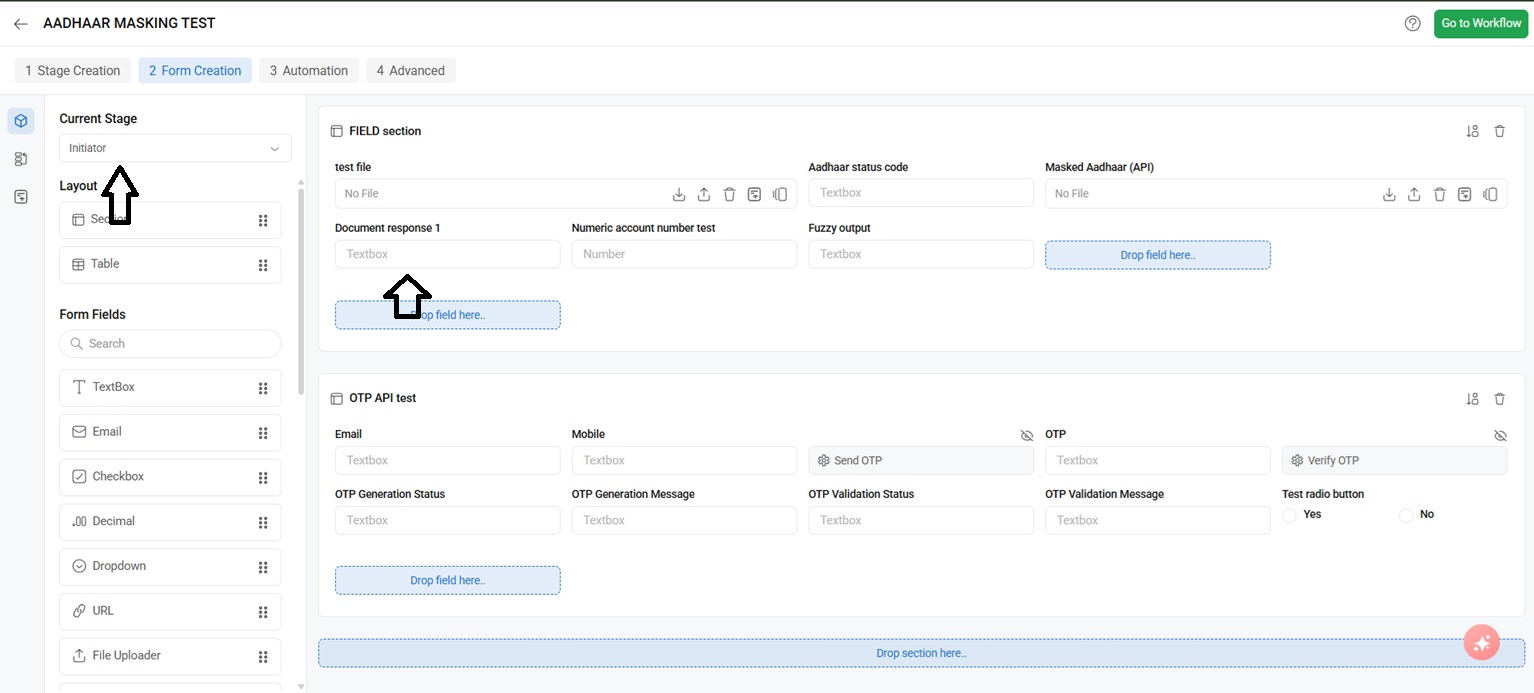
Step 2: If the above sorting has to be saved in the preceding stages, we do have option “Apply selected settings to all the stages”
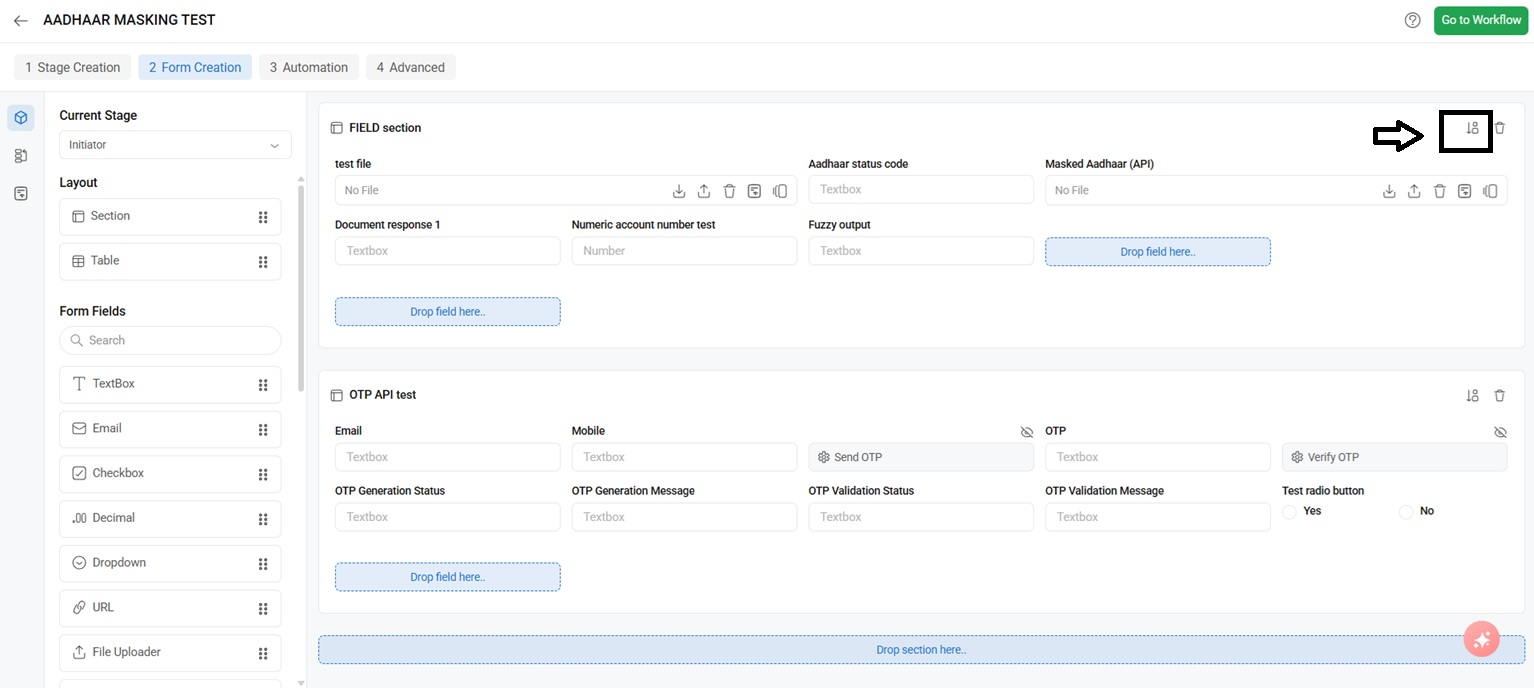
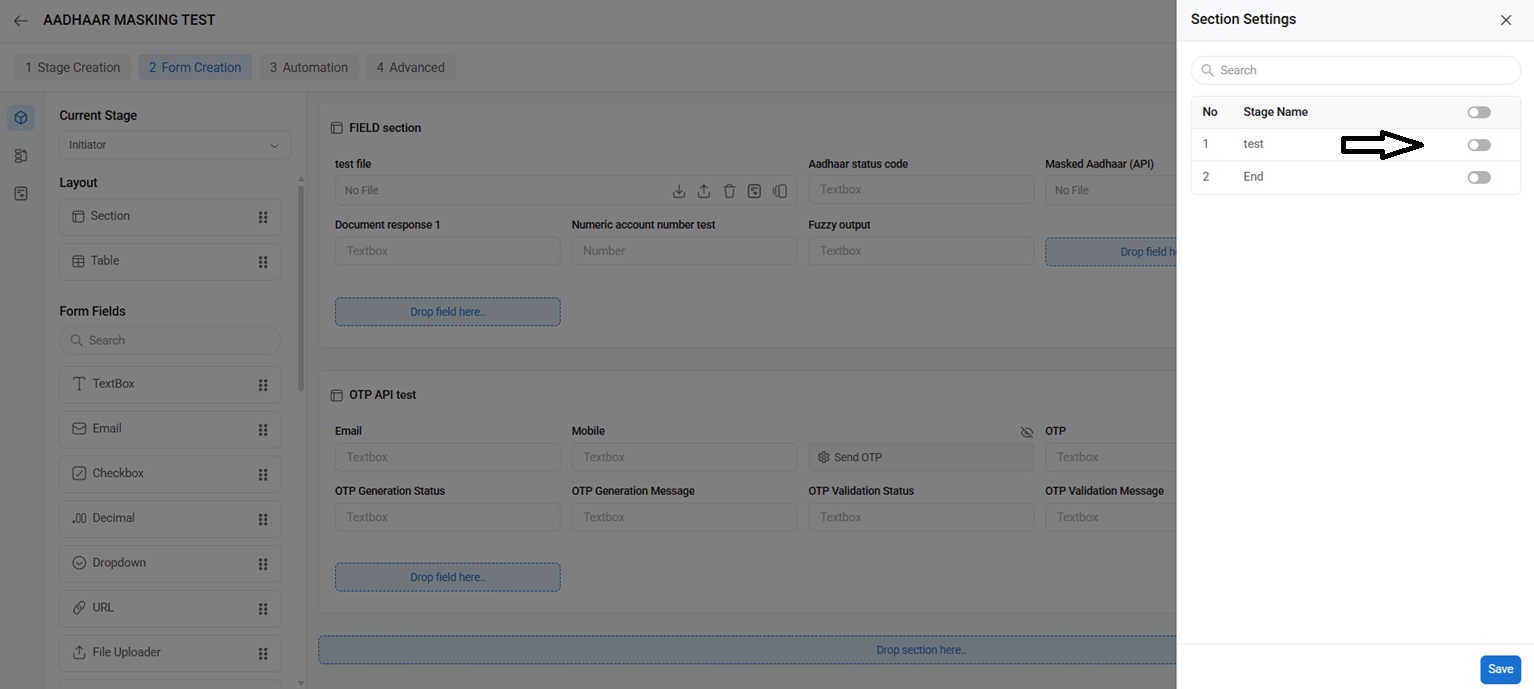
Step 3: When you click on the highlighted icon, the stages appears you can just toggle for the stages you would like to apply the changes and save.
Step 4: A success message appears.
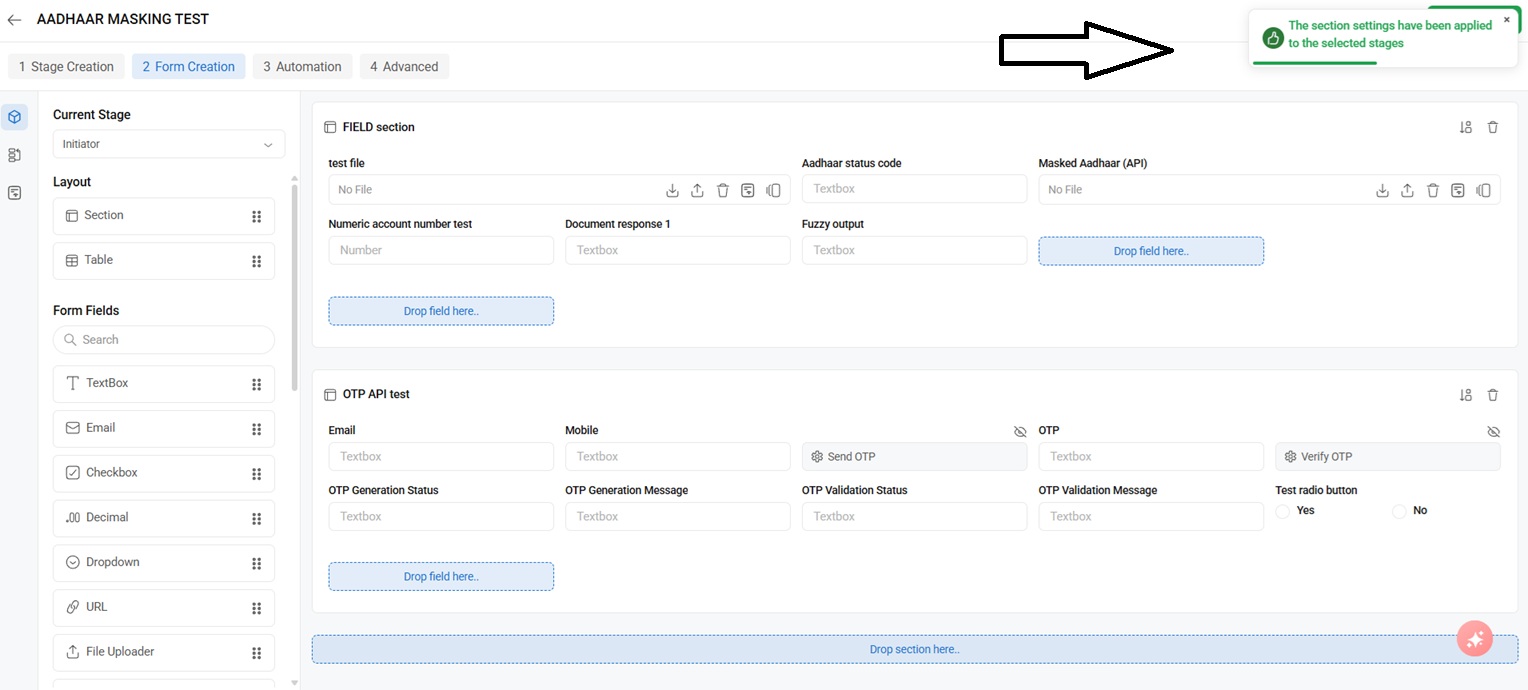
Result: You can check the same by changing the current stage and the sorting will be applied automatically as shown in the below image.