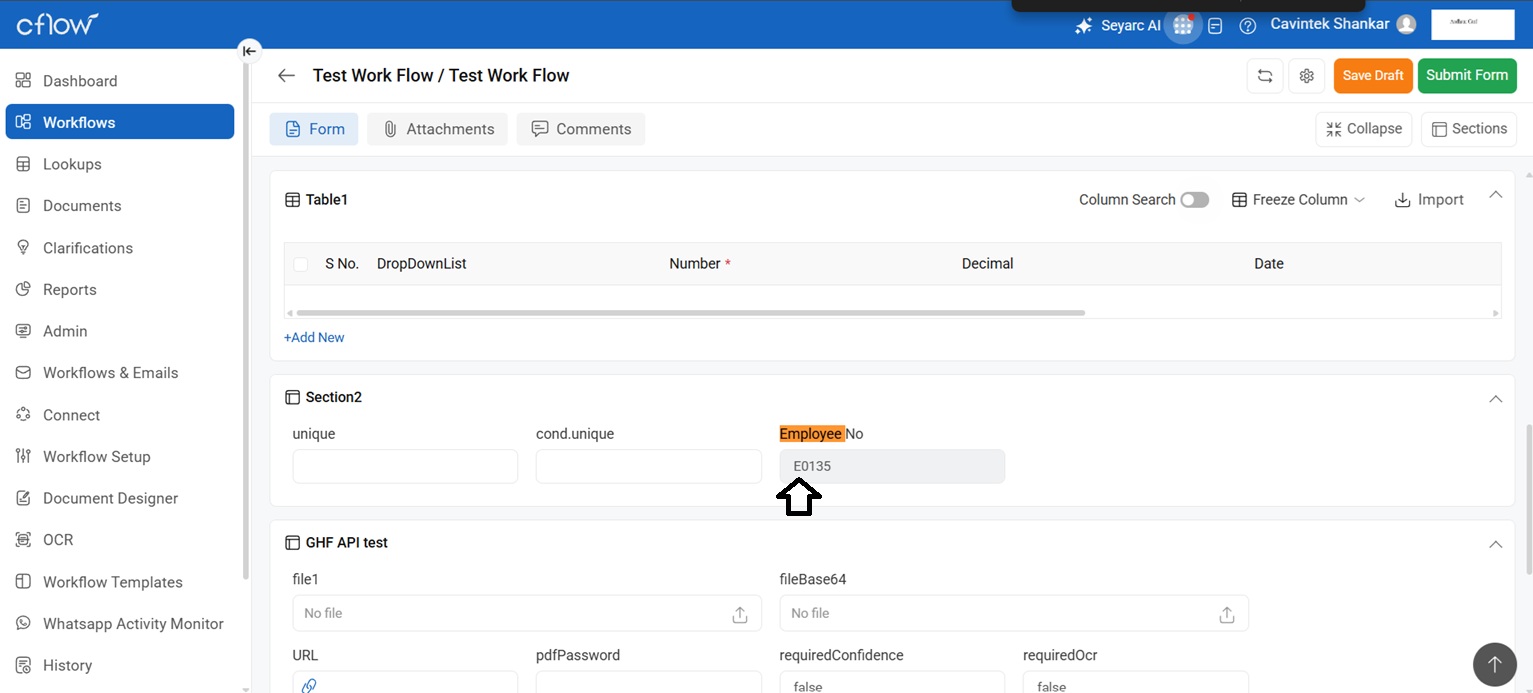
Employee number synopsis:
An employee number, also known as an employee ID, is a unique identifier assigned by organizations to each staff member for internal tracking and management. It links to personal details, payroll data, and access permissions without relying on names or sensitive info like SSNs. This system enhances organization and security in HR processes.
Record Organization
Employee numbers centralize records like job titles, contact info, and employment history for easy retrieval. They prevent mix-ups in large teams by providing a consistent reference. HR systems use them to maintain accurate, confidential employee files.
Payroll Processing
These IDs link wages, taxes, deductions, and benefits directly to individuals, ensuring precise payments. They minimize errors during payroll runs, especially in decentralized setups. Automation tools integrate them for timely salary disbursals.
Access Control
Employee numbers control physical and digital access based on roles, restricting sensitive areas or data. They support badge systems, login credentials, and permissions for security. This reduces breach risks and ensures compliance.
Additional Uses
They track attendance, performance reviews, benefits enrollment, and assets like laptops. In emergencies, IDs aid quick identification. Overall, they boost efficiency across departments like IT and finance.
When logging into Cflow, the platform can automatically populate the user’s employee number by integrating with user’s list. This seamless feature pulls the unique employee ID from the login credentials, eliminating manual entry errors and speeding up access to workflows. It enhances efficiency by pre-filling forms, approvals, and dashboards with accurate staff details right from the start.
How to integrate the employee number in Cflow?
In order to have the employee number to be auto populated in Cflow, follow the below steps.
Step 1: To add a new user, click on the admin panel -> add new user.
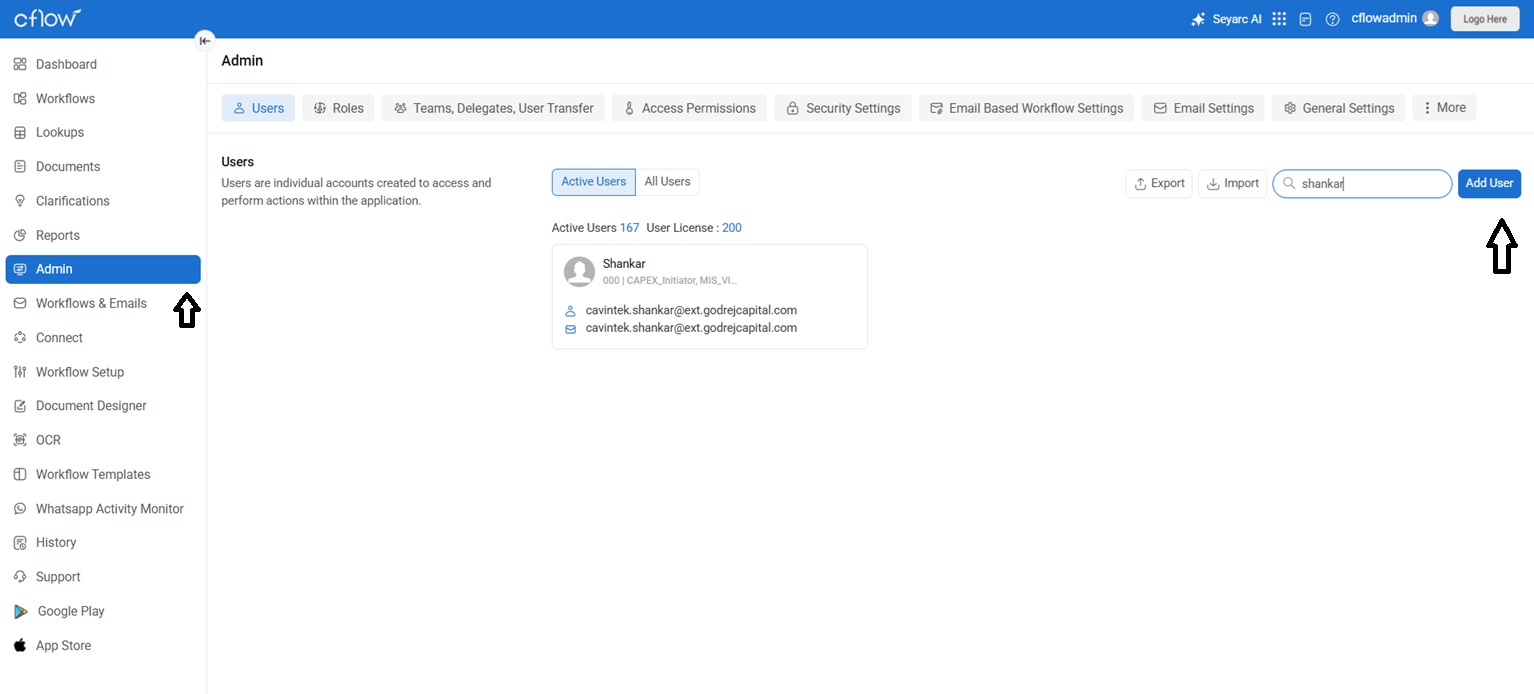
Step 2: Fill all the mandatory fields, here we have field named as employee number. If your organization already has an employee number, you can type the same in this field.
Login ID should be unique field. These details are stored in the “Employee lookup”
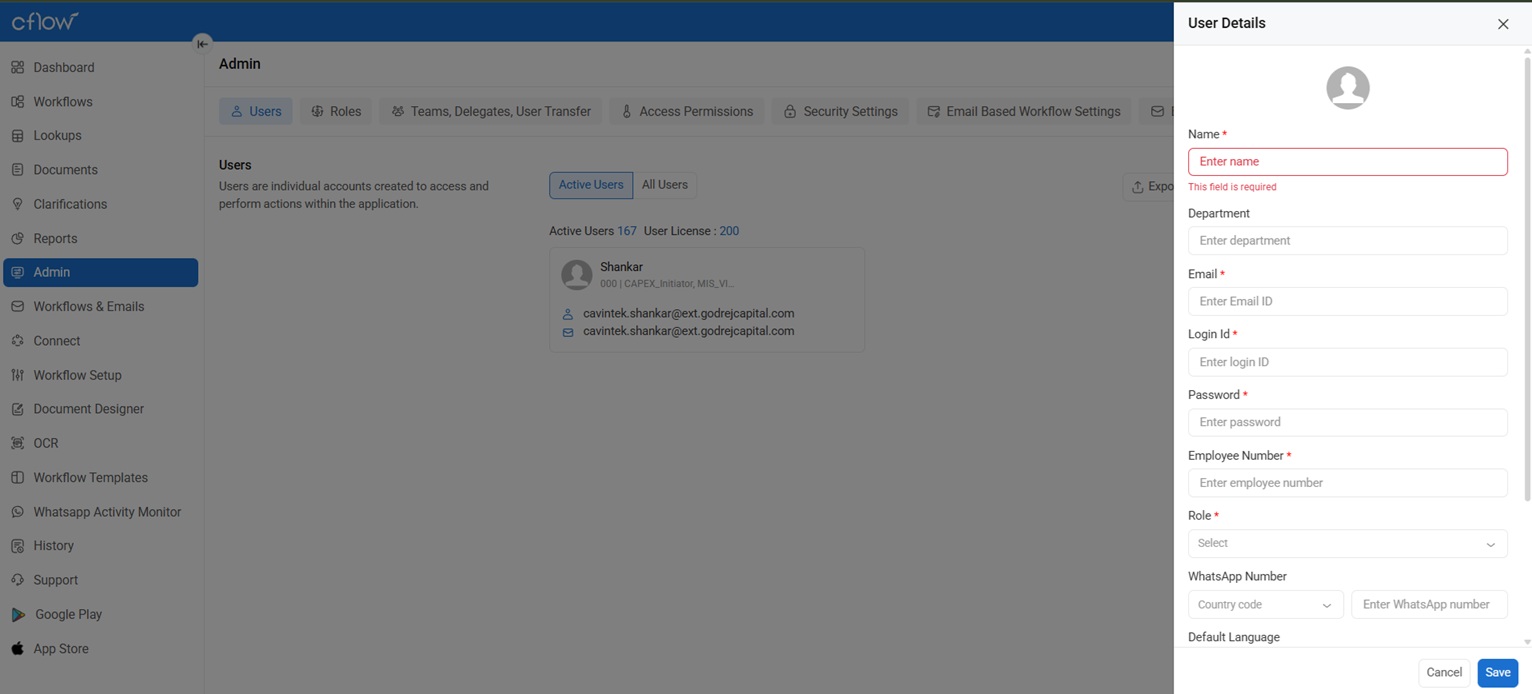
Sample screenshot:
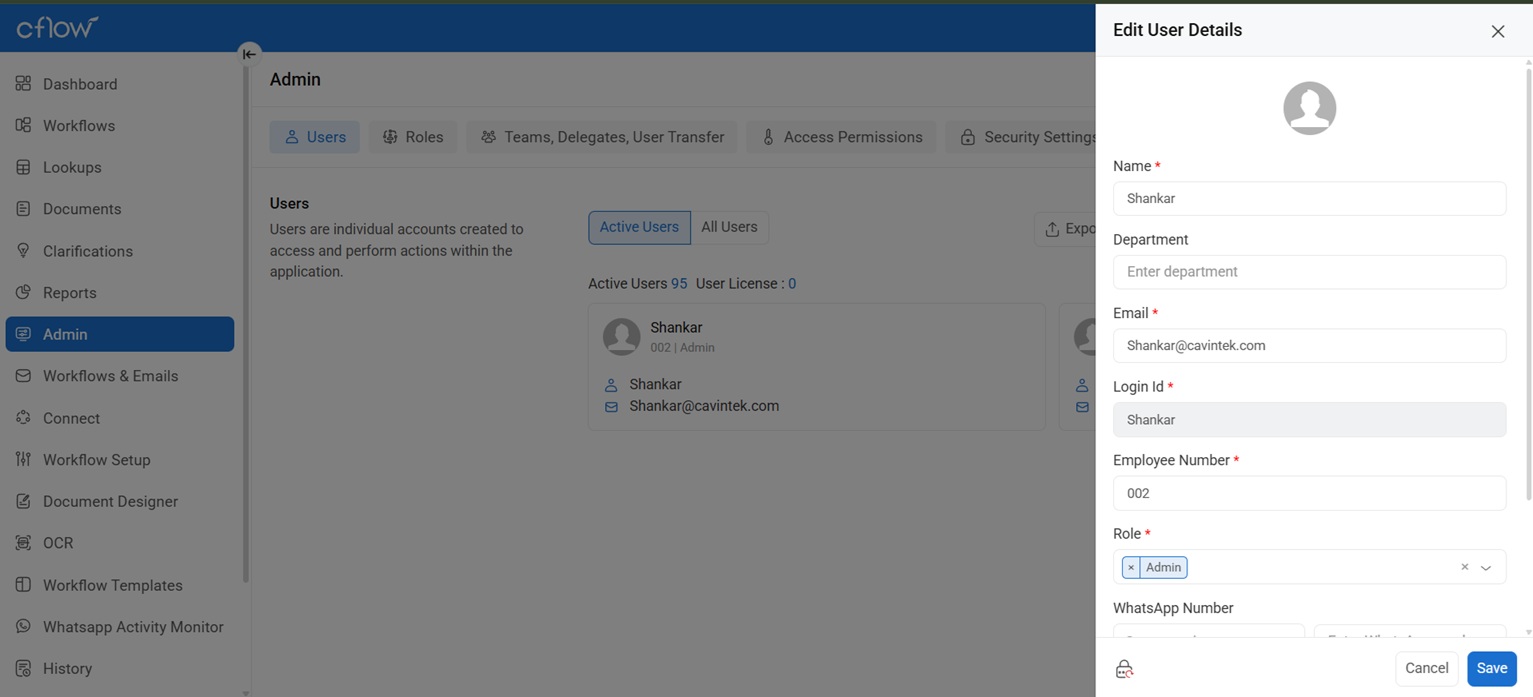
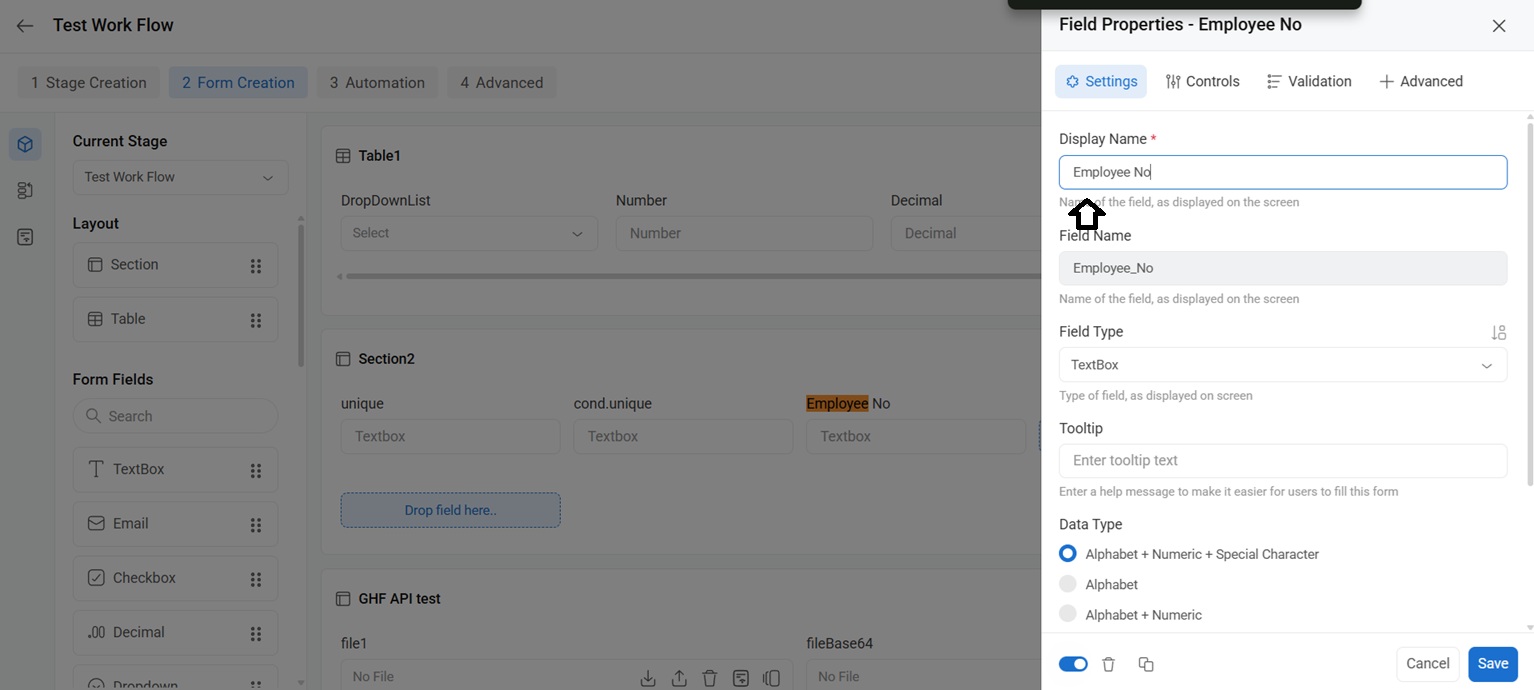
Step 3: Add a “employee no” field name in the workflow you would like to incorporate.
Click on Workflow setup -> select the required workflow -> Form creation -> Drag and drop the textbox and name it as “employee no”
Step 4:
When the user logs in, the “Employee no” automatically fetches from the “Employee Lookup”.