
Pending Requests by User
Overview
The Pending Requests by User widget provides visibility into approval workloads across workflows by showing the number of pending requests assigned to users.
This widget helps administrators and managers:
- Identify users with high or low pending approval loads
- Monitor approval distribution across workflows
- Quickly drill down into stage-level pending requests for a user
The widget includes:
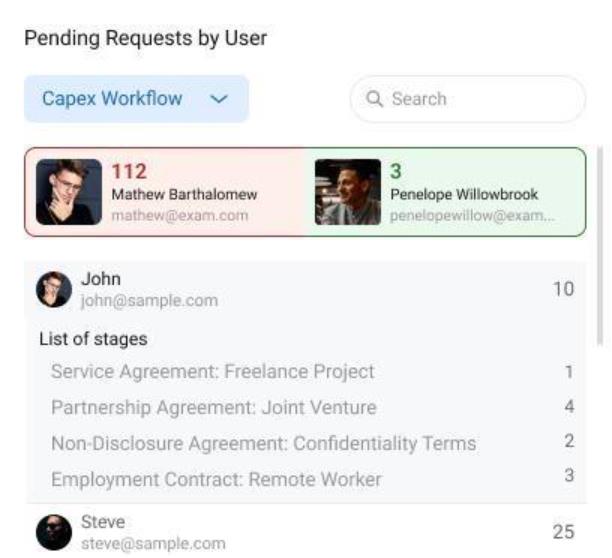
- A Showcase view highlighting users with the highest and lowest pending requests
- A detailed user list with pending counts
- Workflow-based filtering with role-based access control
Access Rules
Admin Role
Admins have full visibility and control.
Capabilities:
- View all workflows in the widget configuration dropdown
- See pending requests for all users
- View user photos for all users
- Access showcase section (highest and lowest pending users)
- Expand any user to see stage-wise pending request counts
Workflow Administrator Role (Per Workflow)
Workflow Administrators have limited access based on assigned workflows.
Capabilities:
- View only workflows where they are added as a Workflow Administrator
- Pending counts include only accessible workflows
- Expand a user to view stage-wise pending counts within permitted workflows
- View showcase section (highest and lowest users) based on accessible data
Non-Admin, Non-Workflow-Admin Users
Standard users have restricted visibility focused on their own workload.
What users can do:
- View the widget on the dashboard
- See only their own pending request count
- Switch between workflows configured in the widget by an admin
- Expand their user entry to view stage-wise pending requests assigned to them
What users cannot do:
- View pending requests of other users
- View the showcase section (highest/lowest pending users)
Widget Configuration
Steps to Configure
- Go to Dashboard
- Click Edit Dashboard
- Select Add Widget
- Choose Pending Requests by User
Configuration Screen
Workflow Selection Dropdown
- Admin users: Can see and select all workflows
- Non-admin users: Can see only workflows where they are part of the Workflow Administrators list
Configuration Options:
- Select one or multiple workflows
- Save the widget configuration
The selected workflows control what data is visible to users when the widget is displayed.
Widget Display Behavior
Showcase Section
(Visible only to Admins and Workflow Administrators)
Displays two highlight cards:
- Red Box: User with the highest number of pending requests
- Green Box: User with the lowest number of pending requests
Each card includes:
- User photo
- Pending request count
User List Section
Displays a list or table containing:
- User photo
- User name
- Email address
- Total pending request count
Drill-down View
- Click or expand a user row to view stage-wise pending request counts assigned to that user
- Data displayed respects the viewer’s role and workflow access
Key Notes
- All counts are calculated based on current pending approvals
- Workflow access rules are enforced consistently across showcase and list views
- Widget visibility does not grant additional workflow permissions
Use Cases
- Managers tracking approval bottlenecks
- Admins balancing workload across teams
- Individual users monitoring their pending approvals
This widget enables better visibility, accountability, and workload management across workflows.